How to Restore an iPhone From an iCloud Backup
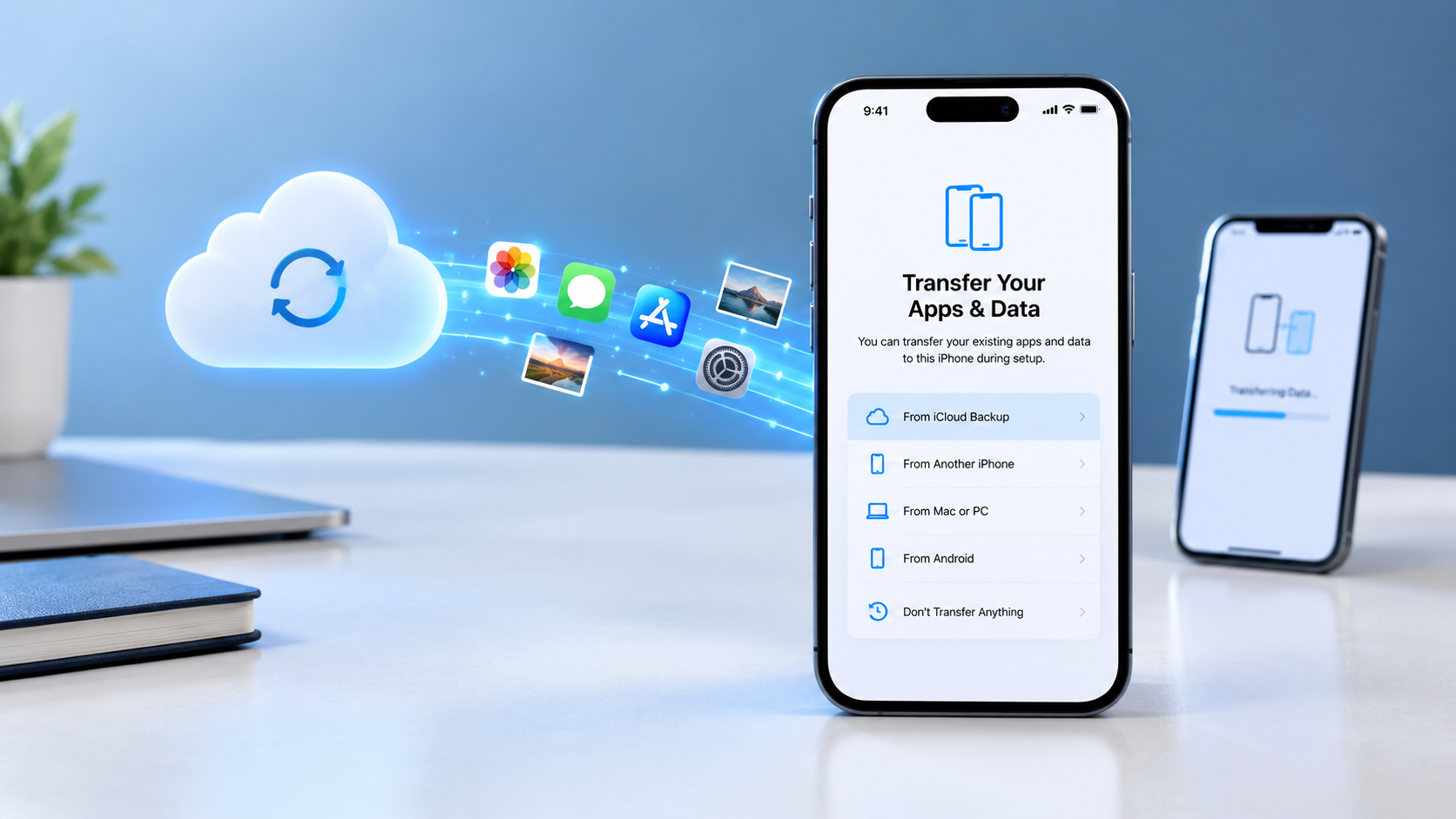
If you have an iCloud backup of your iPhone, you can use it to restore your apps, settings, messages, photos, and other information when setting up an iPhone.
Knowing how to restore an iPhone from an iCloud backup is especially useful when you get a new iPhone, replace a damaged device, reset your iPhone, or need to recover information from an earlier backup.
The process is straightforward, but there is one important requirement: if your iPhone is already set up, you generally need to erase all of its content before restoring a complete iCloud backup.
In this guide, you’ll learn exactly how to restore an iPhone from an iCloud backup, how to choose the correct backup, how long restoration takes, what happens to your photos and apps, and what to do if your iCloud backup doesn’t appear.
What Does It Mean to Restore an iPhone From an iCloud Backup?
Restoring an iPhone from an iCloud backup means using a previously created backup stored in iCloud to return your iPhone to an earlier state.
Depending on your settings and the information stored in iCloud, the restoration can bring back things such as:
- App data
- Device settings
- Home Screen layout
- Messages
- Photos and videos
- Contacts
- Calendars
- Certain account information
- Other personal information included in the backup
Not everything necessarily comes directly from the backup.
Some information may already be synchronized with iCloud and will download separately after you sign in to your Apple Account.
For example, if you use iCloud Photos, your photos and videos can synchronize with iCloud rather than being restored directly from the backup.
Before You Restore an iPhone From an iCloud Backup
Before starting the restoration, there are several things you should check.
1. Make Sure an iCloud Backup Exists
You need an existing backup to restore your iPhone.
If you still have access to your old iPhone, you can check its backup settings by going to:
Settings > [your name] > iCloud > iCloud Backup
If the device has recently backed up, you can use that backup during the setup process.
If you have multiple backups available, check their dates and sizes before choosing one.
2. Know Your Apple Account Password
You need to sign in to the Apple Account associated with your iCloud backup.
You may also be asked to verify your identity using two-factor authentication.
If you purchased apps or other content using multiple Apple Accounts, you may be asked to sign in to those accounts during the restoration process.
3. Connect Your iPhone to Wi-Fi
An iCloud backup is stored online, so your iPhone needs an internet connection to access and download the backup.
Use a reliable Wi-Fi connection, especially if the backup contains a large amount of data.
4. Connect the iPhone to Power
A restoration can take a long time.
Keeping the iPhone connected to power helps prevent the process from being interrupted because of a low battery.
5. Check Available Storage
Make sure the iPhone has enough storage for the information you want to restore.
If you’re moving to an iPhone with less storage than the previous device, some content may require additional management.
How to Restore an iPhone From an iCloud Backup
The following is the main method to restore your iPhone from an iCloud backup during setup.
Step 1: Turn On Your iPhone
Turn on the iPhone.
You should see the Hello screen if the device is new, has been erased, or has been reset.
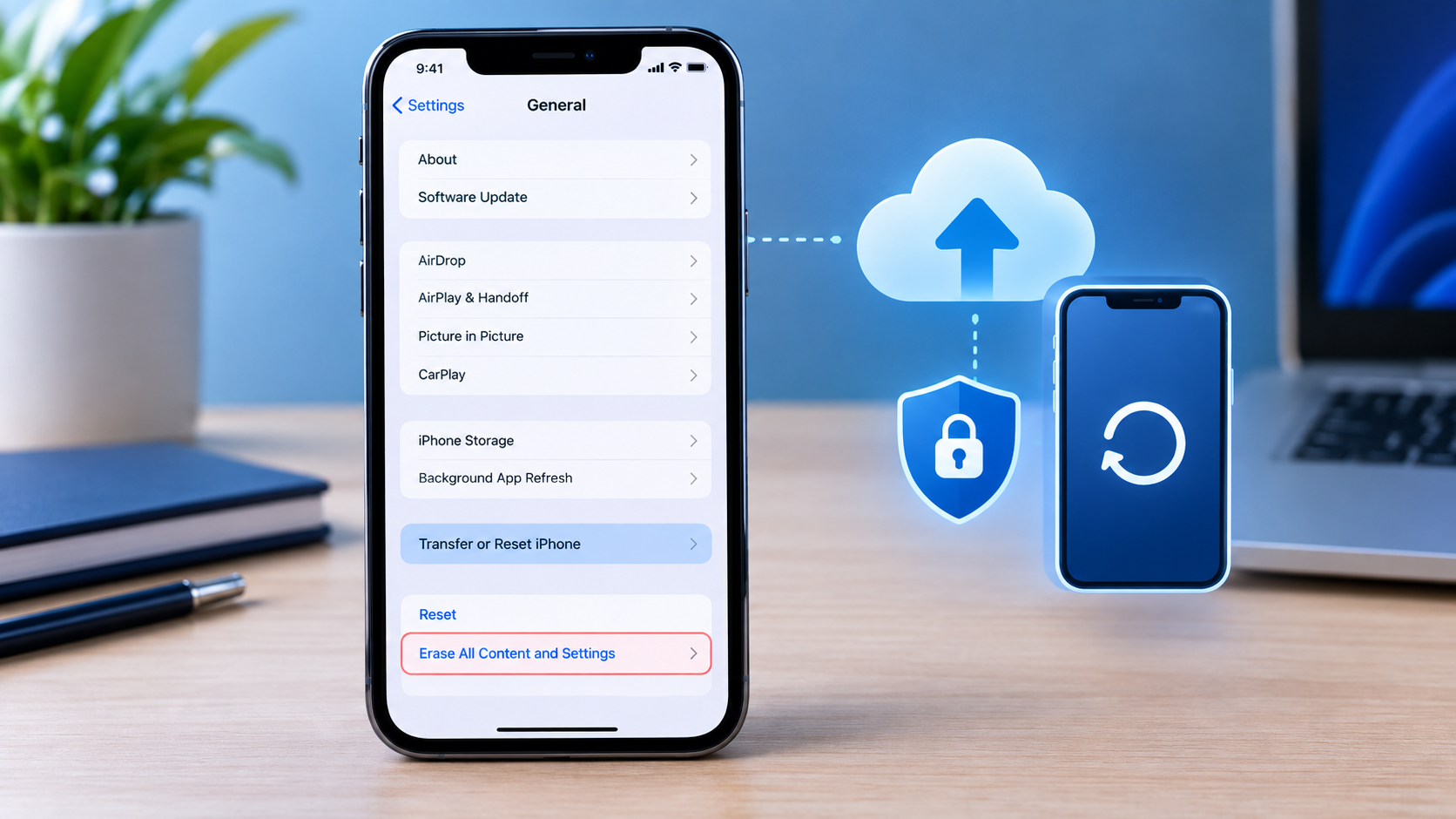
If your iPhone is already set up, you generally need to erase it before you can restore the entire device from an iCloud backup.
Important
Before erasing an iPhone that is already in use, make sure you have a backup of any newer information you want to keep.
To erase the iPhone, go to:
Settings > General > Transfer or Reset iPhone > Erase All Content and Settings
Follow the onscreen instructions.
After the iPhone is erased, it will restart and return to the setup process.
Step 2: Follow the iPhone Setup Instructions
Start setting up the iPhone by following the instructions displayed on the screen.
You’ll be asked to select options such as your language, region, Wi-Fi network, and other settings.
Continue until you reach the screen called:
Transfer Your Apps & Data
This is where you choose how you want to transfer or restore your information.
Step 3: Choose “From iCloud Backup”
On the Transfer Your Apps & Data screen, select:
From iCloud Backup
This tells the iPhone that you want to restore information from a backup stored in iCloud.
Step 4: Sign In to Your Apple Account
Enter the Apple Account information associated with your iCloud backup.
Depending on your account security settings, you may need to complete two-factor authentication.
Make sure you use the account that contains the backup you want to restore.
If you sign in to a different Apple Account, the backup you’re looking for may not appear.
Step 5: Choose the iCloud Backup You Want to Restore
After signing in, available backups should appear.
Look carefully at the:
- Backup date
- Backup size
- Device associated with the backup
Choose the backup that contains the information you want.
Which iCloud Backup Should You Choose?
The newest backup is not always the right choice.
For example, suppose you accidentally deleted important information on Monday and your iPhone created a new backup afterward.
An older backup from Sunday could contain the information you’re trying to recover.
Therefore, look at the backup dates before selecting one.
Step 6: Update Your iPhone If Required
Sometimes the iPhone may need a newer version of iOS before it can restore the selected backup.
If the setup process tells you that a software update is required, follow the onscreen instructions to update the iPhone.
After the update, continue with the restoration process.
Step 7: Wait for the iCloud Restoration to Start
After selecting the backup, the transfer begins.
You’ll see a progress indicator showing the restoration status.
The time required depends on factors such as:
- Size of the backup
- Wi-Fi speed
- Internet stability
- Apple’s server response
- Amount of information being downloaded
The initial restoration can take from several minutes to longer depending on the backup and network conditions.
Don’t disconnect the iPhone from Wi-Fi unnecessarily.
Step 8: Sign In to Restore Apps and Purchases
During setup, you may be asked to sign in to your Apple Account to restore apps and purchases.
If you’ve purchased iTunes or App Store content using multiple accounts, you may be asked to sign in to each account.
If you don’t remember a password, you may be able to skip that step and sign in later.
However, apps associated with an account may not be usable until you sign in.
Step 9: Finish Setting Up Your iPhone
Once the initial restoration is complete, continue through the remaining setup screens.
You should then be able to use your iPhone.
However, don’t assume that everything has finished downloading immediately.
Apps, photos, music, and other information can continue restoring in the background.
Step 10: Keep Your iPhone Connected to Wi-Fi and Power
This is one of the most important steps after restoring an iPhone from iCloud.
Even after the initial setup is complete, additional information may continue downloading.
Depending on how much data you have, the complete process can take several hours or even days.
For the best chance of completing the process quickly:
- Keep the iPhone connected to Wi-Fi.
- Connect it to power.
- Avoid repeatedly disconnecting Wi-Fi.
- Give apps and photos time to download.
How to Restore an iCloud Backup to an iPhone That Is Already Set Up
If your iPhone is currently working and you want to restore an entire iCloud backup, you generally need to erase the device first.
Before doing that, protect any information currently stored on the iPhone that you don’t want to lose.
Step 1: Create a current backup
Go to:
Settings > [your name] > iCloud > iCloud Backup
Then select:
Back Up Now
Wait until the backup finishes.
Step 2: Erase the iPhone
Go to:
Settings > General > Transfer or Reset iPhone > Erase All Content and Settings
Follow the onscreen instructions.
Step 3: Wait for the Hello screen
After the iPhone is erased, it restarts and displays the setup screen.
Step 4: Connect to Wi-Fi
Follow the setup instructions and connect to a reliable Wi-Fi network.
Step 5: Select “From iCloud Backup”
When you reach Transfer Your Apps & Data, choose:
From iCloud Backup
Step 6: Sign in and select your backup
Sign in to your Apple Account and select the backup you want based on its date and size.
The restoration will then begin.
How Long Does It Take to Restore an iPhone From an iCloud Backup?
There isn’t one fixed restoration time.
A smaller backup on a fast and stable Wi-Fi connection can complete relatively quickly.
A large backup with thousands of photos, videos, apps, and other information can take considerably longer.
The initial progress bar may take several minutes to an hour depending on the backup and network speed.
However, the entire restoration doesn’t necessarily finish when that progress bar reaches the end.
After setup is complete, apps, photos, music, and other information can continue restoring in the background.
For a large amount of data, the complete process can take several hours or even days.
How to make iCloud restoration faster
You can help the process by:
- Using fast, reliable Wi-Fi.
- Keeping the iPhone connected to power.
- Avoiding unnecessary Wi-Fi disconnections.
- Keeping the iPhone in an area with a strong wireless signal.
- Allowing the device to remain connected for an extended period.
What Gets Restored From an iCloud Backup?
An iCloud backup can contain many types of information and settings from your iPhone.
Depending on your configuration, it can include:
- Device settings
- Home Screen organization
- App data
- Messages
- Certain account information
- Ringtones
- Some device preferences
- Other information that isn’t already synchronized with iCloud
The exact information restored depends on what was included in the backup and what services you were using.
What Doesn’t Get Restored Directly From an iCloud Backup?
An iCloud backup isn’t necessarily a complete copy of every file on your iPhone.
Some information is synchronized separately through iCloud or another service.
For example, if you use iCloud Photos, your photos and videos may be downloaded from iCloud separately.
Similarly, information that is already synchronized with an online service doesn’t necessarily need to be contained inside the device backup.
This is why some information may appear gradually after the initial restoration.
Why Are My Photos Missing After Restoring an iCloud Backup?
Don’t assume your photos have been lost simply because they aren’t immediately visible.
If you use iCloud Photos, your photo library may be synchronizing separately.
Check:
Settings > [your name] > iCloud > Photos
If iCloud Photos is enabled, connect your iPhone to Wi-Fi and power and give the photo library time to synchronize.
A large photo library can take considerable time to download.
Why Are My Apps Missing After Restoring an iCloud Backup?
Your apps may not all appear immediately.
After the initial restoration, the iPhone can continue downloading apps in the background.
Connect the iPhone to Wi-Fi and power and wait.
If a particular app doesn’t return, check the App Store.
Possible reasons include:
- The app is still downloading.
- You aren’t signed in to the Apple Account used to obtain the app.
- The app is no longer available.
- The app isn’t compatible with the current iOS version.
- The restoration hasn’t finished.
Why Can’t I Find My iCloud Backup?
If your expected backup isn’t showing, check these possibilities.
You’re signed in to the wrong Apple Account
The backup may belong to another Apple Account.
Sign in with the account that was used when the backup was created.
The backup wasn’t successfully created
If the old iPhone didn’t complete an iCloud backup, there may not be a usable backup.
The backup is no longer available
An older backup may no longer be available depending on Apple’s backup retention rules and your account circumstances.
You’re looking for synchronized information
Some information may not be contained in the device backup because it was already synchronized through iCloud.
The iPhone needs a software update
If the backup requires a newer iOS version, the setup process may ask you to update the iPhone before restoring it.
What to Do If Your iCloud Backup Won’t Restore
If the restoration doesn’t work as expected, try the following.
Check your Wi-Fi connection
Make sure the iPhone has a stable internet connection.
If possible, try another reliable Wi-Fi network.
Keep the iPhone connected to power
A long restoration can drain the battery.
Connect the iPhone to a charger and allow the process to continue.
Check for a required software update
If the setup process says the backup requires a newer version of iOS, complete the required update.
Make sure you have enough storage
The destination iPhone needs sufficient storage for the information being restored.
Give the restoration enough time
A large backup may take considerably longer than expected.
The initial setup can finish while additional information continues downloading in the background.
Restart only when necessary
If the iPhone is genuinely unresponsive rather than simply taking a long time to restore, restarting the device may help.
Avoid repeatedly interrupting a restoration that is still progressing.
Can You Restore an iCloud Backup Without Erasing Your iPhone?
If you want to restore an entire iCloud device backup to an iPhone that is already set up, you generally need to erase the device first.
The iCloud backup restoration option appears during the initial setup process.
However, you don’t necessarily need to erase the iPhone to access information that is already synchronized with iCloud.
For example, signing in to your Apple Account and enabling the appropriate iCloud services can bring synchronized information back without restoring the entire device.
Can You Restore an iCloud Backup to a New iPhone?
Yes.
If you have an iCloud backup from your previous iPhone, you can use it when setting up a new iPhone.
During setup:
- Turn on the new iPhone.
- Connect to Wi-Fi.
- Continue until Transfer Your Apps & Data appears.
- Select From iCloud Backup.
- Sign in to your Apple Account.
- Select the appropriate backup.
- Wait for the restoration to begin.
- Keep the iPhone connected to Wi-Fi and power.
Your apps and other content can continue downloading after the initial setup.
Can You Restore an Older iCloud Backup?
Yes, if the older backup is still available.
When multiple backups appear during setup, examine their dates and sizes and select the one that contains the information you need.
This can be useful if a newer backup was created after important information was deleted or changed.
However, restoring an older backup can replace the current state of the iPhone.
If you still have important information on the device, make sure you protect it before restoring an older backup.
Can You Restore an iCloud Backup to a Different iPhone?
Yes.
An iCloud backup can be used when setting up another compatible iPhone.
This is particularly useful if your old iPhone is damaged, lost, or being replaced.
Sign in with the Apple Account associated with the backup and select the appropriate backup during setup.
The amount of information that can be restored can depend on the backup, device compatibility, iOS version, and available storage.
Will Restoring an iCloud Backup Delete Everything?
If you restore a complete iCloud backup to an iPhone that is already set up, you generally need to erase the iPhone first.
Erasing the device removes its current content and settings.
That’s why you should create a current backup before erasing the iPhone if there is information on it that you want to preserve.
Don’t assume that your newest information is contained in the older backup you’re about to restore.
iCloud Backup vs. iCloud Sync: What’s the Difference?
Understanding the difference between iCloud Backup and iCloud synchronization can prevent confusion after restoring an iPhone.
iCloud Backup
iCloud Backup saves information and settings from your device that aren’t already being synchronized with iCloud.
It is designed to help you restore the device if you replace, reset, or lose it.
iCloud Sync
iCloud synchronization keeps certain information available across your Apple devices.
For example, iCloud Photos can keep your photos and videos synchronized through iCloud.
This means your photos might download after the initial backup restoration rather than being restored directly from the backup.
What Should You Do Before Erasing Your iPhone?
If you still have access to your old iPhone, don’t erase it immediately.
First:
- Connect it to Wi-Fi.
- Make sure you’re signed in to the correct Apple Account.
- Create a current iCloud backup.
- Wait for the backup to finish.
- Check that important information is available.
- Make sure you know your Apple Account password.
- Confirm that important photos and other synchronized content are available.
- Only then erase the iPhone if necessary.
This is particularly important if you’re restoring an older backup.
What Happens After an iCloud Backup Is Restored?
The restoration doesn’t necessarily end the moment you reach the Home Screen.
You may notice that:
- Apps are still downloading.
- Photos are still appearing.
- Messages are synchronizing.
- Music is downloading.
- Some information isn’t immediately available.
- The iPhone may temporarily perform more background activity.
This can be normal.
Keep the iPhone connected to Wi-Fi and power and allow the restoration and synchronization processes to finish.
What If You Get an Error During iCloud Restoration?
If you receive an error while restoring an iCloud backup, first read the message carefully.
Depending on the error, you may need to:
- Check your internet connection.
- Update iOS.
- Confirm your Apple Account credentials.
- Try again later.
- Make sure sufficient storage is available.
- Check whether the selected backup is available.
If the problem continues, Apple’s support resources can provide troubleshooting specific to the error you’re seeing.
Frequently Asked Questions
How do I restore an iPhone from an iCloud backup?
Turn on the iPhone and follow the setup instructions until you reach Transfer Your Apps & Data. Select From iCloud Backup, sign in to your Apple Account, choose the relevant backup, and wait for the restoration to begin.
Do I have to erase my iPhone to restore an iCloud backup?
If the iPhone is already set up and you want to restore the entire device from an iCloud backup, you generally need to erase the iPhone first. Back up any current information you want to keep before erasing it.
How long does it take to restore an iPhone from an iCloud backup?
The initial restoration can take several minutes to an hour depending on the backup size and network speed. After setup, apps, photos, music, and other information can continue restoring in the background for several hours or even days.
Why isn’t my iCloud backup showing?
Check that you’re using the Apple Account associated with the backup. Also check whether the backup was successfully created, whether it is still available, and whether your iPhone needs a software update before it can use the backup.
Will my photos be restored from an iCloud backup?
Photos may be restored through the backup or synchronized separately through iCloud, depending on how your iPhone was configured. If you use iCloud Photos, your photo library can continue downloading after the initial setup.
Can I restore an older iCloud backup?
Yes, if the older backup is still available. Check the dates and sizes of the available backups and choose the one containing the information you need.
Can I restore an iCloud backup to a new iPhone?
Yes. During the new iPhone’s setup process, select From iCloud Backup, sign in to your Apple Account, and choose the appropriate backup.
Can I restore only one item from an iCloud backup?
A complete iCloud backup restoration is designed to restore the device rather than selectively restore individual items. However, information synchronized with iCloud or another service may be accessible without restoring the entire device.
Why are my apps not showing after restoring my iPhone?
Apps can continue downloading after the initial restoration. Connect the iPhone to Wi-Fi and power and give the process time to finish. You may also need to sign in to the Apple Account used to obtain certain apps.
Can I use my iPhone while it is restoring?
You may be able to use the iPhone after the initial setup finishes, but some information can continue restoring in the background. For the smoothest restoration, keep the iPhone connected to Wi-Fi and power.
Final Thoughts
Learning how to restore an iPhone from an iCloud backup can make replacing, resetting, or recovering an iPhone much easier.
The basic process is:
Turn on the iPhone → reach Transfer Your Apps & Data → select From iCloud Backup → sign in to your Apple Account → choose the correct backup → wait for the restoration → keep the iPhone connected to Wi-Fi and power.
If your iPhone is already set up, remember that you generally need to erase it before restoring an entire iCloud backup. Before doing that, protect any newer information you still need.
Also, don’t worry if everything doesn’t appear immediately. The initial restoration can finish before apps, photos, music, and other information have completely downloaded.
For the best results, choose the correct backup by checking its date and size, use a stable Wi-Fi connection, keep the iPhone connected to power, and allow enough time for the background restoration to finish.

Post Comment