How to Reset an iPhone to Factory Settings Safely
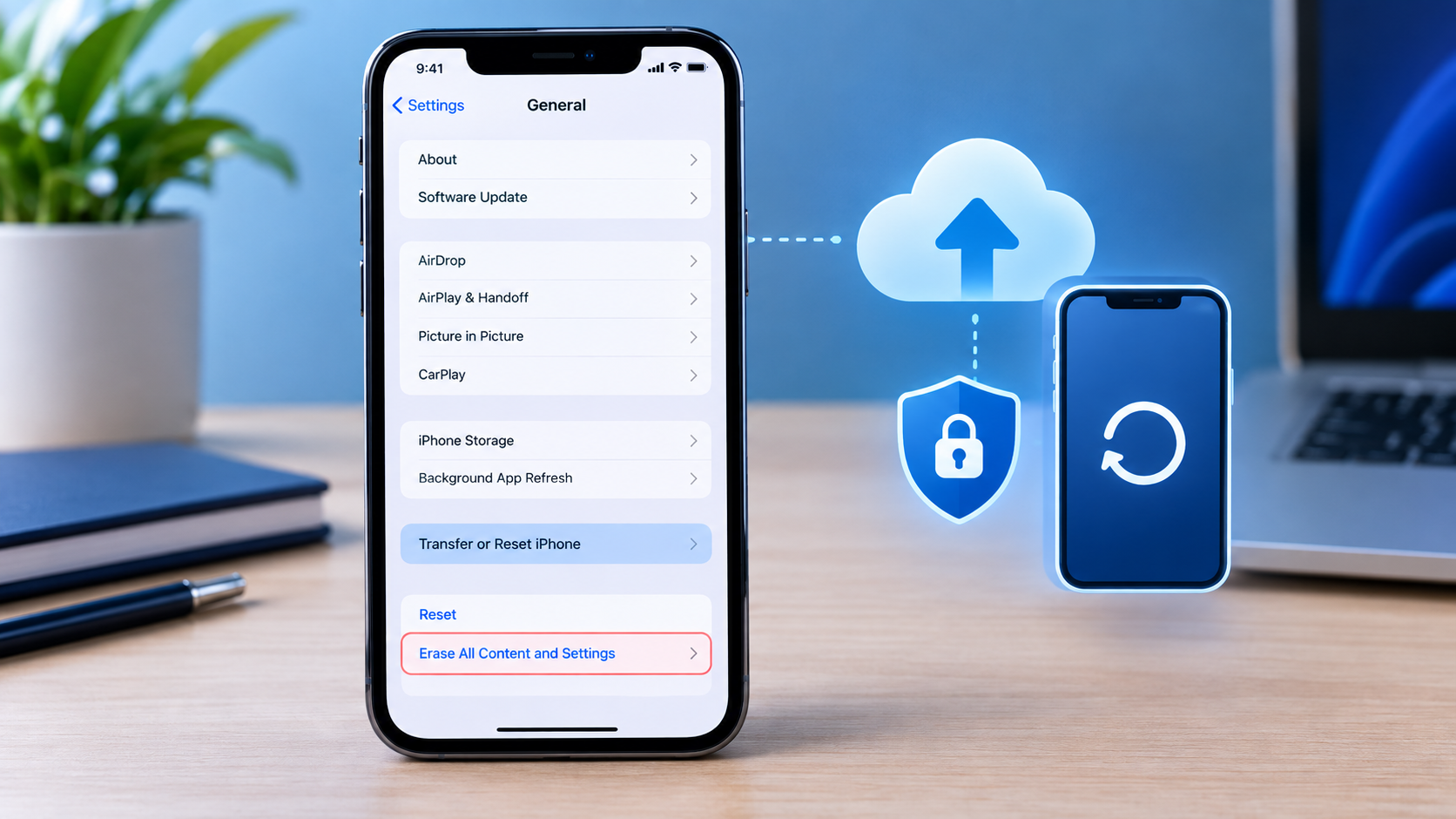
Knowing how to reset an iPhone to factory settings safely is important if you are selling your iPhone, giving it to someone else, troubleshooting serious software problems, or simply want to start over with a clean device.
A factory reset erases the information and settings stored on your iPhone and returns it to the initial setup state. However, you should not erase the device before protecting important data such as photos, contacts, messages, and files.
The safest approach is to back up your iPhone first, verify your important information, understand your eSIM options, and then use Apple’s built-in “Erase All Content and Settings” option.
This guide explains exactly how to reset an iPhone to factory settings safely, what happens during the process, what to do before selling your iPhone, and what to do if the device will not erase.
What Does a Factory Reset Do to an iPhone?
A factory reset removes the content and settings stored on the iPhone and returns the device to its initial setup experience.
Depending on your device and configuration, the process can remove:
- Photos and videos stored on the iPhone
- Messages
- Contacts stored on the device
- Installed apps
- App data
- Personal settings
- Wi-Fi and network settings
- Face ID or Touch ID settings
- Apple Pay cards
- Personal accounts and information
- Files stored locally on the iPhone
When the process finishes, the iPhone displays the Hello screen so it can be set up again.
Does a factory reset delete everything from iCloud?
Not necessarily.
A factory reset erases information from the iPhone itself. Data that has already been synchronized with iCloud or another service can remain available through that service.
Similarly, an iCloud backup can remain available after the iPhone has been erased.
This is why it is important to understand the difference between erasing your iPhone and deleting your cloud data or backups.
What to Do Before Resetting Your iPhone
Before you learn how to reset an iPhone to factory settings safely, prepare the device.
A few minutes of preparation can prevent the loss of important information.
1. Back Up Your iPhone
The most important step is creating a current backup.
You can back up your iPhone using iCloud or a computer.
For an iCloud backup, go to:
Settings → [your name] → iCloud → iCloud Backup
Then use the option to back up your iPhone.
Wait for the backup to complete.
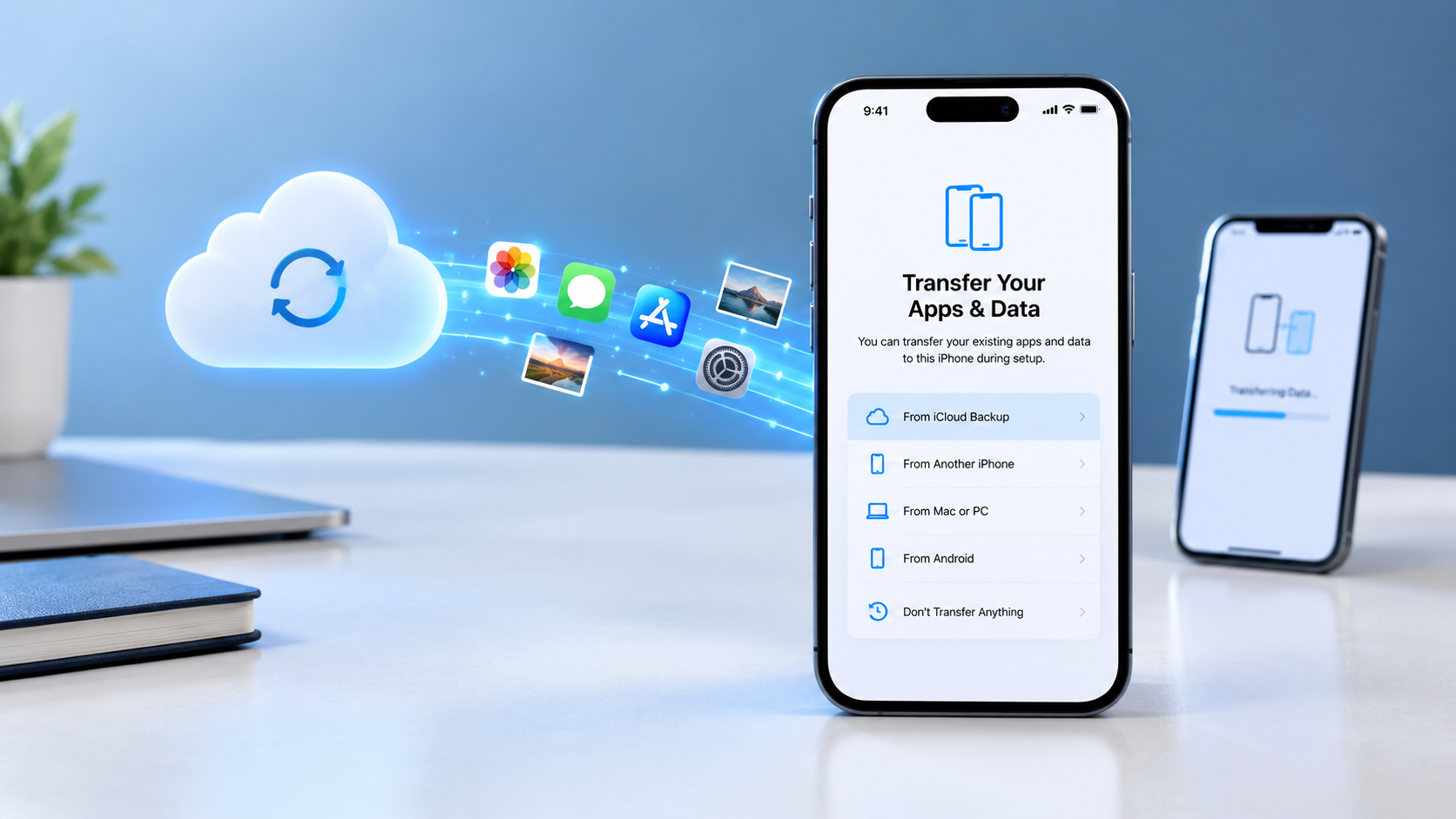
Your backup can help you restore your information when setting up the iPhone again or moving to another device.
What should you check before resetting?
Pay particular attention to:
- Photos
- Videos
- Contacts
- Messages
- Notes
- Calendars
- Important documents
- Voice recordings
- App data
- Other information you cannot replace
If your information is already synchronized with iCloud, check that it is available before erasing the device.
2. Check Your Important Photos and Files
Do not assume that every important file has been backed up simply because you use iCloud.
Check important information before resetting the phone.
For example, verify that your important photos, contacts, notes, and files are available through your backup or synchronization service.
This is especially important if you are resetting an iPhone because of a storage, software, or performance problem.
3. Make Sure You Know Your Apple Account Password
You may be asked for your Apple Account password during the erase process.
Before resetting your iPhone, make sure you can sign in to your Apple Account.
If you have forgotten your password, recover access before proceeding.
This is particularly important if you are selling or giving away the iPhone.
4. Check Your eSIM Before Erasing the iPhone
If your iPhone uses an eSIM, pay close attention to the eSIM option during the reset.
During the erase process, you may be asked whether you want to:
- Keep the eSIM, or
- Delete the eSIM
If you delete the eSIM, you may need to contact your carrier to reactivate your cellular plan.
If you are keeping the iPhone, carefully consider whether you need to keep the cellular plan.
If you are selling or giving the iPhone to another person, you will generally need to remove your cellular plan from the device.
Because carrier procedures can vary, check with your mobile carrier if you are unsure.
How to Reset an iPhone to Factory Settings Safely
Once your important information has been backed up and you are ready to erase the device, you can use the built-in reset option.
Follow these steps.
Step 1: Open Settings
Open the Settings app on your iPhone.
Step 2: Tap General
Scroll down and tap General.
Step 3: Tap Transfer or Reset iPhone
Scroll to the bottom of the General settings page.
Tap:
Transfer or Reset iPhone
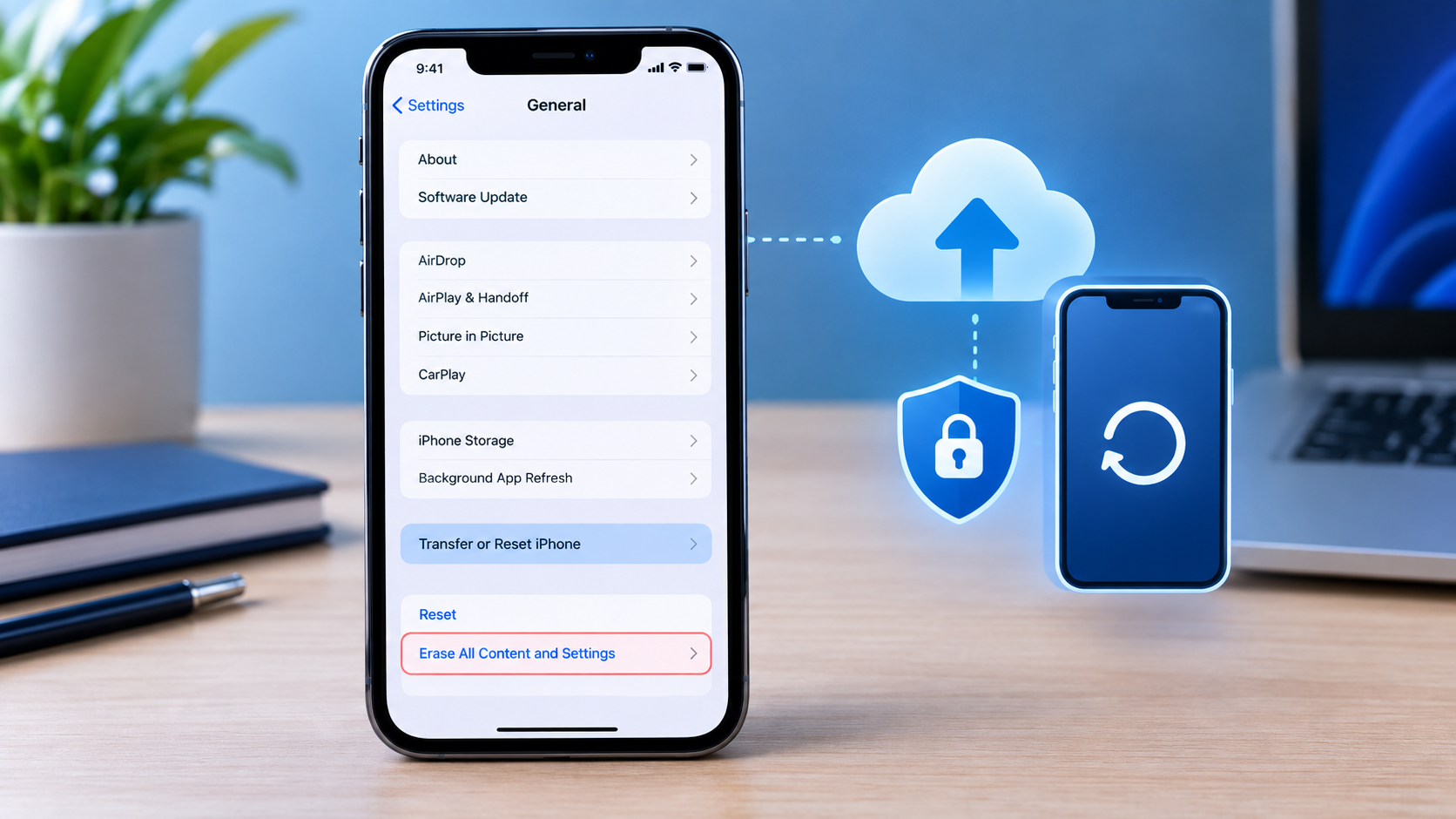
Step 4: Select Erase All Content and Settings
Tap:
Erase All Content and Settings
This is the option you want when you need to completely factory reset the iPhone.
Do not confuse it with Reset All Settings, which performs a different type of reset.
Step 5: Tap Continue
Review the information displayed on the screen and tap Continue.
Your iPhone may display information about the data that will be removed.
Step 6: Choose What to Do With Your eSIM
If your iPhone uses an eSIM, you may be asked whether you want to keep or delete it.
Choose the appropriate option based on whether you are keeping the device or transferring ownership.
If you delete the eSIM, you may need your carrier to reactivate the cellular plan later.
Step 7: Enter Your Device Passcode
Enter the passcode you use to unlock the iPhone.
This confirms that you are authorized to perform the reset.
Step 8: Allow the Backup to Finish
If the iPhone needs to complete a backup, allow the process to finish before the device is erased.
Do not interrupt the process unnecessarily.
Step 9: Enter Your Apple Account Password
You may be asked to enter your Apple Account password.
Enter it when prompted and continue.
Step 10: Wait for the iPhone to Reset
The iPhone will begin erasing its content and settings.
The device may restart during the process.
Do not turn off the device or interrupt the process unless instructed to do so.
Step 11: Wait for the Hello Screen
When the reset is complete, the iPhone displays the Hello screen.
At this point, the device is ready to be set up again.
How Do You Know the iPhone Was Successfully Factory Reset?
The easiest way to confirm that the reset has completed is to look for the initial setup screen.
You should see the Hello screen rather than your normal Home Screen.
If you are keeping the iPhone, you can begin setting it up again.
If you are selling or giving away the iPhone, stop at the setup screen and allow the new owner to complete the setup.
What Happens to Your Photos After a Factory Reset?
A factory reset removes photos stored on the iPhone.
However, this does not necessarily mean that every copy of those photos is gone.
For example, photos that were already synchronized with iCloud Photos may remain available in your iCloud account.
Photos included in a backup may also be available when you restore that backup.
This is why you should check your important photos before resetting the device.
Can You Factory Reset an iPhone Without Losing Your Data?
You can protect your data by creating a backup before performing the reset.
The reset itself still erases the content stored on the iPhone.
Afterward, if you are keeping the device, you can set it up and restore information from an available backup.
The important point is:
Back up first, erase second, restore later if necessary.
Do not assume that you can recover information that was never backed up or synchronized.
Factory Reset vs. Reset All Settings
These options are not the same.
Reset All Settings
Reset All Settings restores many system settings to their defaults while keeping your personal content on the iPhone.
It may reset settings such as:
- Network settings
- Keyboard settings
- Location settings
- Privacy settings
- Other system preferences
Your photos, apps, and other personal information are not erased in the same way as a factory reset.
Erase All Content and Settings
Erase All Content and Settings is the option you use when you want to completely erase the iPhone and return it to the initial setup state.
If you are selling, trading in, or giving away the iPhone, this is the relevant option.
Should You Factory Reset an iPhone Before Selling It?
Yes.
If another person will become the owner of your iPhone, you should erase your personal information before handing over the device.
Before selling it:
- Back up your iPhone.
- Check your important photos and files.
- Transfer your information to your new device if necessary.
- Make sure you know your Apple Account password.
- Review your eSIM options.
- Select Erase All Content and Settings.
- Complete the erase process.
- Confirm that the iPhone reaches the Hello screen.
Do not sign back into your personal Apple Account after the reset if you are handing the phone to another person.
What About Activation Lock?
Activation Lock is a security feature associated with Find My.
It is designed to prevent someone else from using an iPhone that remains associated with another person’s Apple Account.
If you are selling or giving away your iPhone, make sure the device has been properly removed from your account as part of the transfer and erase process.
A buyer should be able to activate the device with their own account without being asked for the previous owner’s account credentials.
A factory reset should not be treated as a way to bypass Activation Lock.
How to Factory Reset an iPhone Without the Passcode
If you have forgotten your iPhone passcode, you may not be able to use the normal Settings method.
In that situation, you may need to use Apple’s recovery process with a computer to erase and restore the device.
The important thing to understand is that erasing an iPhone does not bypass Activation Lock.
If Find My and Activation Lock are associated with the device, the appropriate Apple Account credentials may still be required during activation.
What If Your iPhone Won’t Erase?
If your iPhone does not complete the factory reset, there are several things to check.
Forgot Your Passcode
If you cannot remember your device passcode, use Apple’s recovery instructions for a device with a forgotten passcode or one that is disabled.
Forgot Your Apple Account Password
If the reset asks for your Apple Account password and you cannot remember it, recover your account access before continuing.
Screen Time Passcode
If you have a Screen Time passcode that you cannot remember, you may need to reset it separately.
Restoring an iPhone from a backup does not automatically remove a Screen Time passcode.
Device Still Will Not Erase
If the normal Settings process does not work, Apple’s recovery-mode procedure may allow you to erase and restore the iPhone using a computer.
Should You Factory Reset an iPhone That Is Running Slowly?
Not always.
A factory reset is a major step because it removes the information and settings from the device.
If your iPhone is experiencing a minor problem, you can try simpler troubleshooting steps first.
A factory reset may be appropriate when:
- Software problems persist
- You want to start over
- You are preparing the device for another owner
- You are troubleshooting after other solutions have failed
- You want to remove your personal information before selling the device
Always back up important information before using the factory reset option.
Common Mistakes When Factory Resetting an iPhone
Resetting Without a Backup
If important information exists only on the iPhone, erasing it without a backup can result in permanent data loss.
Forgetting About Your eSIM
If you delete an eSIM, you may need your carrier to reactivate your cellular service.
Choosing the Wrong Reset Option
Reset All Settings is not the same as Erase All Content and Settings.
If you need a complete factory reset, select the erase option.
Forgetting Your Apple Account Password
Make sure you can access your Apple Account before starting the process.
Handing Over an iPhone With Personal Information
If you are selling or giving away the device, do not leave your photos, messages, accounts, or other personal information on the phone.
Interrupting the Erase Process
Once the iPhone begins resetting, allow the process to finish.
Frequently Asked Questions
How do I reset an iPhone to factory settings safely?
Back up your important information first. Then go to Settings → General → Transfer or Reset iPhone → Erase All Content and Settings. Follow the on-screen instructions, review the eSIM option if applicable, enter your passcode and Apple Account password when requested, and wait until the Hello screen appears.
Does factory resetting an iPhone delete everything?
A factory reset erases the content and settings stored on the iPhone. Information that has already been synchronized with iCloud or included in a backup can remain available through those services.
Will a factory reset delete my iCloud backup?
Erasing the iPhone does not automatically mean that your existing iCloud backup is deleted.
Can I factory reset an iPhone without a computer?
Yes. If you can unlock the iPhone and access Settings, you can normally erase it directly from the device.
What happens after I factory reset my iPhone?
The iPhone erases its content and settings and eventually displays the Hello screen. You can then set it up again or leave it at the setup screen for its next owner.
Should I keep or delete my eSIM when resetting my iPhone?
It depends on what you are doing with the phone. If you are keeping the device and still need the cellular plan, review the option to keep the eSIM. If you are transferring ownership, you will generally need to remove your cellular plan. If you are unsure, contact your carrier.
Do I need my Apple Account password to reset my iPhone?
You may be asked for your Apple Account password during the erase process. Having access to your account before starting the reset can prevent problems.
Does factory resetting remove Activation Lock?
A factory reset should not be considered a method for bypassing Activation Lock. The device must be properly removed from the previous owner’s account before another person can use it as their own.
What if I forgot my iPhone passcode?
If you cannot unlock the iPhone, you may need to use Apple’s recovery process to erase and restore the device using a computer.
Does Reset All Settings factory reset an iPhone?
No. Reset All Settings and Erase All Content and Settings are different. A complete factory reset uses Erase All Content and Settings.
iPhone Factory Reset Safety Checklist
Before you reset your iPhone, check each item:
- Important photos are backed up or synchronized
- Important files are backed up
- Contacts and messages are protected
- Your Apple Account password is available
- You understand what will happen to your eSIM
- You have transferred important information to another device if necessary
- You selected Erase All Content and Settings
- You allowed the erase process to finish
- The Hello screen appears after the reset
Final Thoughts
Learning how to reset an iPhone to factory settings safely is mostly about preparing before you erase the device.
Start by creating a current backup and checking your important photos, files, contacts, and other information. Make sure you can access your Apple Account and carefully review the eSIM option if your iPhone uses one.
Then go to:
Settings → General → Transfer or Reset iPhone → Erase All Content and Settings
Follow the on-screen instructions and wait for the process to finish. When the Hello screen appears, the iPhone has returned to its initial setup state.
If you are selling or giving away the device, leave it at that screen rather than signing back into your personal account. If you are keeping the iPhone, you can proceed with setup and restore your information from your backup when appropriate.

Post Comment