How to Back Up an iPhone to iCloud
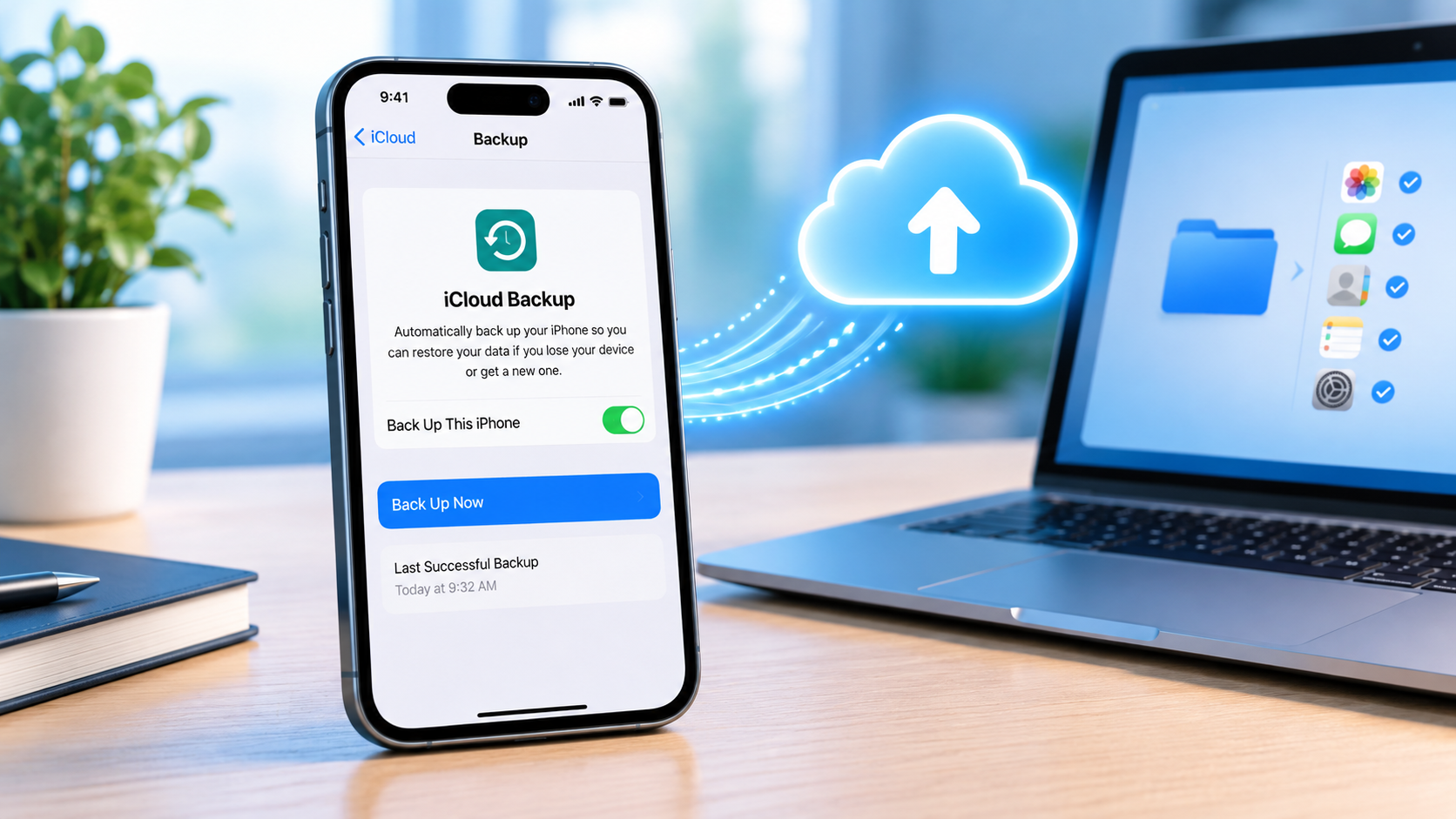
If you want to protect your photos, messages, app data, settings, and other important information, learning how to back up an iPhone to iCloud is an important step.
An iCloud backup gives you a copy of supported iPhone data that you can use when setting up a new iPhone or restoring your device. You can create a backup manually whenever you want, or turn on automatic iCloud Backup so your iPhone can back up regularly.
In this guide, you’ll learn how to back up an iPhone to iCloud step by step, how to check whether your backup was successful, what iCloud Backup includes, how much storage you need, and what to do if your iPhone won’t back up.
How to Back Up an iPhone to iCloud: Quick Steps
The easiest way to back up your iPhone to iCloud is:
- Connect your iPhone to Wi-Fi.
- Open Settings.
- Tap your name at the top.
- Tap iCloud.
- Tap iCloud Backup.
- Turn on Back Up This iPhone.
- Tap Back Up Now.
- Wait for the backup to finish.
Afterward, check the Last Successful Backup date and time to confirm that the backup completed.
What Is an iCloud Backup?
An iCloud backup is a copy of certain information and settings from your iPhone that is stored in your iCloud account.
It can help you restore supported information if your iPhone is lost, damaged, replaced, erased, or reset.
An iCloud backup is different from simply synchronizing information with iCloud. Some information, such as photos and messages, can be synchronized separately through iCloud depending on your settings.
This is why it’s important to understand what is included in your iCloud backup rather than assuming it is an exact copy of everything on your iPhone.
What You Need Before Backing Up Your iPhone to iCloud
Before you start, check these things:
- Your iPhone is connected to Wi-Fi.
- You are signed in to your Apple Account.
- You have enough available iCloud storage.
- Your iPhone has enough battery or is connected to power.
- Your internet connection is stable.
If you are preparing to move to a new iPhone, it is particularly important to create a recent backup before you erase or sell your old device.
How to Back Up an iPhone to iCloud Manually
You can manually create an iCloud backup from the Settings app.
Step 1: Connect Your iPhone to Wi-Fi
Connect your iPhone to a reliable Wi-Fi network.
A backup can contain a significant amount of information, so a stable connection is important.
If your Wi-Fi connection keeps dropping, the backup may take longer or fail.
Step 2: Open Settings
Open the Settings app on your iPhone.
Then tap your name at the top of the screen to open your Apple Account settings.
Step 3: Tap iCloud
Tap iCloud.
Here you can view your iCloud storage and manage the apps and services that use iCloud.
Step 4: Open iCloud Backup
Scroll down and tap iCloud Backup.
You should see an option called Back Up This iPhone.
Step 5: Turn On Back Up This iPhone
If the option is turned off, tap the switch to enable it.
Turning on iCloud Backup allows your iPhone to create automatic backups when the required conditions are met.
Step 6: Tap Back Up Now
Tap Back Up Now to start a backup immediately.
Keep your iPhone connected to Wi-Fi until the process finishes.
The amount of time required depends on factors such as the amount of data being backed up and the speed of your internet connection.
How to Turn On Automatic iCloud Backup
You don’t have to manually back up your iPhone every time.
Once Back Up This iPhone is enabled, your iPhone can automatically back up when it is connected to power, connected to Wi-Fi, and locked.
To enable it, go to:
Settings → [your name] → iCloud → iCloud Backup
Then turn on:
Back Up This iPhone
Automatic backups are useful because you don’t have to remember to manually create a backup every day.
However, you should still occasionally check that the backups are completing successfully.
How to Check if Your iPhone Is Backed Up to iCloud
After creating a backup, you can check whether it completed successfully.
Go to:
Settings → [your name] → iCloud → iCloud Backup
Look for Last Successful Backup.
The date and time shown there tell you when your most recent successful backup was completed.
If you are about to reset, sell, trade in, or replace your iPhone, check this information before proceeding.
What Does iCloud Backup Include?
The information included in an iCloud backup depends on your settings and which information is already synchronized with iCloud.
A backup can include supported information such as:
- App data
- Device settings
- Home Screen layout
- Messages, when they are not already being synchronized through Messages in iCloud
- Photos and videos, when they are not already being synchronized through iCloud Photos
- Apple Watch backup data
- Ringtones
- Visual Voicemail password
- Certain purchase information
Your iCloud backup is therefore not necessarily an exact copy of every file stored on your iPhone.
Information already stored or synchronized through iCloud may not need to be duplicated in the device backup.
Does iCloud Back Up iPhone Photos?
This depends on whether you use iCloud Photos.
When iCloud Photos is enabled, your photos and videos are synchronized with iCloud rather than being included in the iCloud device backup in the same way as photos that are not synchronized with iCloud Photos.
You can check your iCloud settings if you’re unsure how your photos are being stored.
If your photos are especially important, keeping another copy can provide additional protection.
Does iCloud Back Up iPhone Messages?
Messages can also be handled differently depending on your iCloud settings.
If you use Messages in iCloud, your messages are synchronized through iCloud.
If Messages in iCloud is not being used, supported messages may be included in your device backup.
Therefore, don’t assume that every message is stored in the same way. Check your iCloud settings to understand how your messages are being handled.
Does iCloud Back Up Apps?
iCloud does not normally create a complete copy of every app installed on your iPhone.
Instead, supported app data can be included in your backup.
When you restore your iPhone, compatible apps can be downloaded again from the App Store, while supported app data can be restored from your backup.
This can make setting up a replacement iPhone much easier.
How to Check Which Apps Use iCloud Backup Storage
If your iCloud backup is taking up too much storage, you can review which apps are using backup space.
Go to:
Settings → [your name] → iCloud → Storage → Backups
Then select your iPhone.
You can review the information associated with the backup and identify apps that are using significant amounts of storage.
If an app contains data that you don’t need to back up, you may be able to turn off its backup.
Be careful before disabling backup for an app containing important information.
How Much iCloud Storage Do You Need for an iPhone Backup?
The amount of iCloud storage you need depends on the amount of information that needs to be backed up.
To check your available storage, go to:
Settings → [your name] → iCloud
You can see how much iCloud storage you are using and how much remains available.
If your iCloud storage is full, your iPhone may not be able to complete a new backup.
You can then consider:
- Removing unnecessary iCloud data
- Deleting old device backups you no longer need
- Reducing the amount of app data included in the backup
- Upgrading your iCloud+ storage plan
What to Do if iCloud Storage Is Full
Don’t immediately assume that you need more storage.
First, check what is using your iCloud space.
Go to:
Settings → [your name] → iCloud
Review the storage categories and backups.
You may find an old iPhone backup or other unnecessary data consuming a large amount of space.
If you no longer need an old device backup, you can consider removing it.
However, don’t delete a backup if you may still need it to restore an old or current device.
Why Won’t My iPhone Back Up to iCloud?
If your iPhone won’t back up to iCloud, several things can cause the problem.
1. Check Your Wi-Fi Connection
Make sure your iPhone is connected to a stable Wi-Fi network.
A weak or unreliable connection can interrupt the backup.
If possible, try another reliable Wi-Fi network.
2. Check Your iCloud Storage
Open:
Settings → [your name] → iCloud
Check whether you have enough available storage.
If there isn’t enough space for the backup, it may fail.
3. Make Sure iCloud Backup Is Turned On
Go to:
Settings → [your name] → iCloud → iCloud Backup
Make sure Back Up This iPhone is enabled.
Then try tapping Back Up Now.
4. Connect Your iPhone to Power
If you’re trying to create an automatic backup, connect your iPhone to a power source.
Keeping the phone connected to power can also prevent the backup from being interrupted because of a low battery.
5. Restart Your iPhone
If the backup continues to fail, restarting your iPhone can sometimes resolve temporary software or connection problems.
After restarting, reconnect to Wi-Fi and try the backup again.
6. Check for an iOS Update
Go to:
Settings → General → Software Update
If an update is available, review it and install it when appropriate.
If your main priority is securing your data before making major changes to the phone, try to create a successful backup first whenever possible.
7. Try Again Later
Sometimes a backup problem may be temporary.
If your Wi-Fi connection and iCloud storage are fine but the backup still fails, wait a while and try again.
If the problem continues, consider using another supported backup method, such as backing up the iPhone to a computer.
How to Back Up an iPhone to iCloud Before Getting a New iPhone
If you’re replacing your iPhone, create a fresh iCloud backup before transferring to the new device.
On your old iPhone:
Settings → [your name] → iCloud → iCloud Backup → Back Up Now
Wait for the backup to finish.
Then check the Last Successful Backup date and time.
This gives you a recent backup that can be available when setting up your new iPhone.
Don’t erase or sell your old iPhone until you have confirmed that your important information has been transferred or backed up successfully.
Can You Back Up an iPhone Without Wi-Fi?
For a normal iCloud device backup, Wi-Fi is required.
If you don’t currently have Wi-Fi, you can consider another method of transferring or backing up your iPhone, depending on your situation.
For example, Apple’s direct iPhone-to-iPhone transfer option can be useful when setting up a new iPhone.
However, if your goal is specifically to create an iCloud backup, connect the iPhone to Wi-Fi.
How Long Does an iCloud Backup Take?
There isn’t one fixed backup time for every iPhone.
It depends on:
- How much data needs to be backed up
- Your internet speed
- The quality of your Wi-Fi connection
- The number of apps and amount of app data
- Other network activity
A small backup may finish relatively quickly, while a larger backup can take considerably longer.
If a backup appears to be stuck, first check your Wi-Fi connection and available iCloud storage.
iCloud Backup vs. Computer Backup
iCloud is not the only way to back up an iPhone.
You can also create a local backup using a computer.
iCloud Backup
Advantages:
- Can happen automatically
- Doesn’t require connecting the iPhone to a computer
- Useful when setting up a replacement iPhone
- Stored separately from the physical iPhone
Disadvantages:
- Requires sufficient iCloud storage
- Requires an internet connection
- Large backups can take time
Computer Backup
Advantages:
- Creates a local copy on your computer
- Doesn’t depend on available iCloud storage
- Useful as an additional backup
Disadvantages:
- Requires a computer
- You need to remember to create backups
- The backup is stored on the computer rather than automatically in the cloud
For important data, having more than one backup can provide additional protection.
Can You Restore an iPhone From an iCloud Backup?
Yes.
An available iCloud backup can be used when setting up an iPhone.
During the setup process, you can choose the appropriate option to restore your information from an iCloud backup.
This is one of the main reasons to create a current backup before replacing or resetting an iPhone.
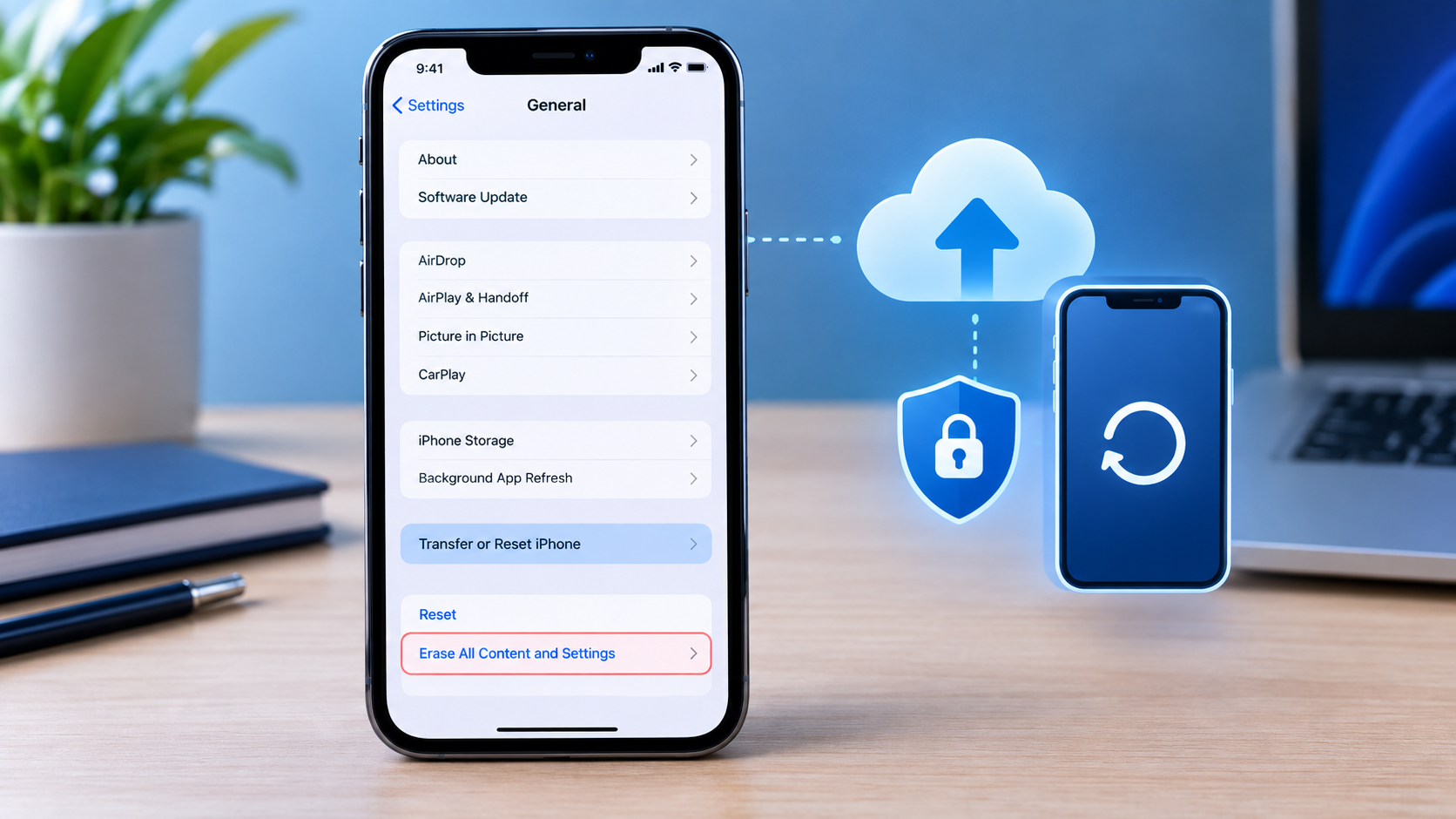
Should You Back Up Your iPhone Before Resetting It?
Yes.
If you plan to erase or reset your iPhone, create a recent backup first if you need to preserve the information currently stored on the device.
Go to:
Settings → [your name] → iCloud → iCloud Backup → Back Up Now
Then wait for the backup to complete.
Check the Last Successful Backup date and time before erasing the phone.
Frequently Asked Questions
How do I back up my iPhone to iCloud?
Go to Settings → [your name] → iCloud → iCloud Backup, turn on Back Up This iPhone, and tap Back Up Now.
How do I know if my iPhone is backed up to iCloud?
Go to Settings → [your name] → iCloud → iCloud Backup and check the Last Successful Backup date and time.
Does iPhone automatically back up to iCloud?
Yes. When Back Up This iPhone is enabled, your iPhone can automatically back up when it is connected to Wi-Fi and power and is locked.
Why is my iCloud backup not working?
Check your Wi-Fi connection, available iCloud storage, iCloud Backup settings, battery or power connection, and iOS version. Restarting the iPhone and trying again can also help.
Does iCloud back up everything on an iPhone?
No. An iCloud device backup is not necessarily an exact copy of everything on your iPhone. Some information is synchronized separately through iCloud or stored through other accounts and services.
Does iCloud backup photos?
Photos may be included in an iCloud device backup when iCloud Photos is not being used. When iCloud Photos is enabled, your photos and videos are synchronized separately through iCloud Photos.
Can I back up my iPhone to iCloud before buying a new iPhone?
Yes. Creating a recent iCloud backup before switching to a new iPhone is a useful way to preserve supported information for the setup and restoration process.
What happens if my iCloud storage is full?
A new iCloud backup may not complete if there isn’t enough available storage. Review your iCloud storage, remove unnecessary data or old backups if appropriate, or consider upgrading your storage.
Is iCloud Backup free?
Apple provides a limited amount of iCloud storage with an Apple Account. Whether that storage is enough for your backup depends on the amount of data you need to store.
Final Thoughts
Knowing how to back up an iPhone to iCloud can help protect your important information if your device is lost, damaged, reset, or replaced.
The basic process is simple:
Settings → [your name] → iCloud → iCloud Backup → Back Up Now
For ongoing protection, turn on Back Up This iPhone so your iPhone can create automatic backups when the required conditions are met.
Most importantly, don’t simply turn on iCloud Backup and forget about it. Check the Last Successful Backup occasionally, especially before selling, resetting, or replacing your iPhone.
For important photos, documents, and other valuable information, maintaining an additional copy can provide another layer of protection.

Post Comment