How to Take a Screenshot on iPhone
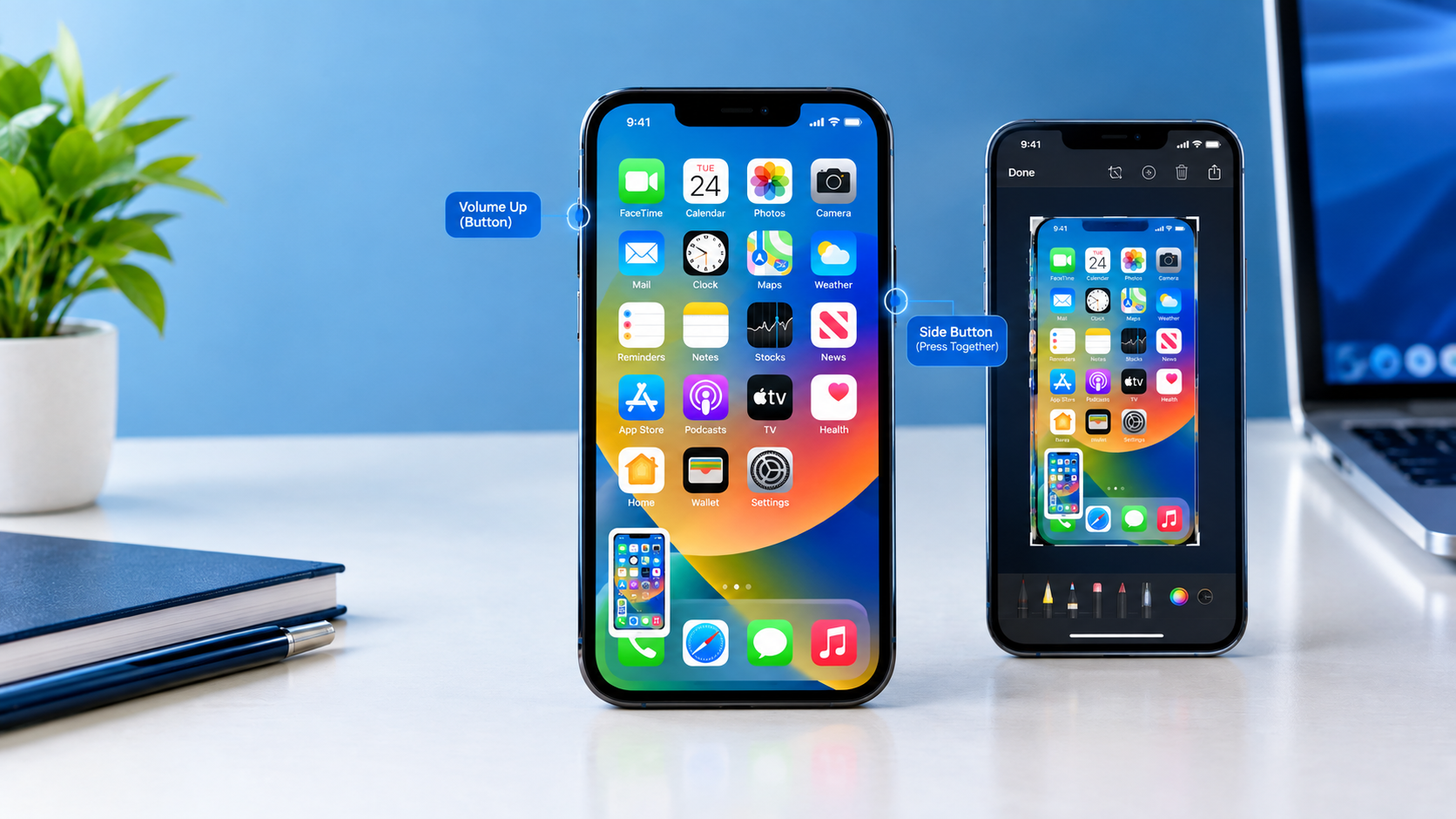
Want to save something that is currently displayed on your iPhone screen? Learning how to take a screenshot on iPhone takes only a second.
The method depends on whether your iPhone has Face ID or a Home button. Once you capture the screen, you can edit, crop, annotate, share, or save the screenshot.
With iOS 26, screenshots also open with quick tools immediately after you capture them, making it easier to edit, save, and share them.
This guide explains how to take a screenshot on iPhone, where screenshots are saved, how to capture a full webpage, how to screenshot without physical buttons, and what to do if screenshots are not working.
How to Take a Screenshot on iPhone With Face ID
Most newer iPhone models do not have a physical Home button. If your iPhone uses Face ID, follow these steps:
- Open the screen you want to capture.
- Press the Side button and Volume Up button at the same time.
- Quickly release both buttons.
- Your iPhone captures the screen.
That’s it. The screenshot can then be edited, shared, or saved.
Apple’s current iPhone instructions confirm that the Side button and Volume Up button should be pressed and released quickly at the same time on Face ID models.
Quick shortcut
Face ID iPhone: Side button + Volume Up
Press both buttons together, then release them immediately.
How to Take a Screenshot on iPhone With a Home Button
If your iPhone has a physical Home button, the screenshot method is different.
iPhone with Touch ID and a Side button
- Open the screen you want to capture.
- Press the Side button and Home button at the same time.
- Quickly release both buttons.
- Your screenshot is captured.
Shortcut: Side button + Home button
iPhone with Touch ID and a Top button
Some older iPhone models have a Top button instead of a Side button.
- Open the screen you want to capture.
- Press the Top button and Home button simultaneously.
- Quickly release both buttons.
- Your iPhone captures the screen.
Shortcut: Top button + Home button
Apple lists both Home-button methods in its current screenshot instructions.
iPhone Screenshot Button Combinations
If you just need the shortcut, use this table:
| iPhone type | Buttons to press |
|---|---|
| iPhone with Face ID | Side + Volume Up |
| iPhone with Touch ID and Side button | Side + Home |
| iPhone with Touch ID and Top button | Top + Home |
The important thing is to press the buttons at the same time and release them quickly.
What Happens After You Take a Screenshot on iPhone?
The screenshot experience depends on your iOS version.
iOS 26
In iOS 26, your iPhone automatically displays the screenshot with quick tools available. You can edit the image, use Markup, crop it, share it with other apps or contacts, or use the Save option to choose where to save it.
This means you can work with the screenshot immediately instead of having to open Photos first.
iOS 18 and Earlier
On iOS 18 and earlier, a small screenshot thumbnail temporarily appears in the lower-left corner of the screen.
You can:
- Tap the thumbnail to open the screenshot.
- Swipe the thumbnail to the left to dismiss it.
The screenshot itself is still saved to your photo library.
How to Edit a Screenshot on iPhone
After taking a screenshot, you can make changes before sharing or saving it.
Depending on the screenshot interface available on your iPhone, you can:
- Crop the image
- Draw on it
- Add text
- Mark important areas
- Share it
- Save it
- Delete it
Apple’s screenshot tools include Markup for adding drawings and annotations.
How to Crop an iPhone Screenshot
To keep only part of the screen:
- Take a screenshot.
- Open the screenshot editing interface.
- Select the crop option.
- Drag the edges or corners around the area you want to keep.
- Save the edited screenshot.
Cropping is useful when a screenshot contains unnecessary information around the area you actually want to share.
How to Annotate an iPhone Screenshot
You can use Markup to add drawings and other annotations to a screenshot.
For example, you can:
- Circle an important item.
- Draw an arrow.
- Highlight part of the screen.
- Add handwritten notes.
- Add text.
- Mark a specific button or setting.
This is particularly useful when you’re sending someone instructions or showing them a problem on your iPhone.
How to Take a Full-Page Screenshot on iPhone
A normal screenshot captures what is visible on your screen. On supported content, you can also capture content that extends beyond the visible screen.
For example, you can capture an entire webpage in Safari instead of taking several separate screenshots. Apple’s current iPhone guide includes a Full Page option for compatible content.
Steps to take a full-page screenshot
- Open the webpage in Safari.
- Take a screenshot using the appropriate button combination.
- Open the screenshot controls if necessary.
- Select Full Page.
- Review the extended screenshot.
- Crop it if needed.
- Save or share it.
The Full Page option is especially useful for webpages and other supported content that extends beyond the visible screen.
How to Take a Screenshot Without Using the Buttons
You don’t always have to use the physical buttons to take a screenshot.
Apple also supports alternative methods such as:
- Siri
- AssistiveTouch
- Back Tap
These options can be useful if you have difficulty pressing the physical buttons or simply prefer an alternative shortcut.
Use AssistiveTouch to Take a Screenshot
AssistiveTouch places an on-screen control over your iPhone’s interface.
To configure it:
- Open Settings.
- Tap Accessibility.
- Tap Touch.
- Tap AssistiveTouch.
- Turn on AssistiveTouch.
- Configure an available action or menu item for Screenshot.
You can then use the on-screen control instead of pressing the physical buttons.
How to Take a Screenshot With Back Tap
Supported iPhone models can use Back Tap to perform actions by tapping the back of the iPhone.
To configure it:
- Open Settings.
- Tap Accessibility.
- Tap Touch.
- Tap Back Tap.
- Choose Double Tap or Triple Tap.
- Select Screenshot.
Afterward, use the selected tapping method on the back of your iPhone to capture the screen.
How to Take a Screenshot With Siri
Siri can also be used as an alternative to the physical screenshot buttons on supported iPhones.
Activate Siri and ask it to take a screenshot.
This can be useful when you don’t want to use the physical buttons. Apple’s current iPhone guide lists Siri as one of the alternative ways to take a screenshot.
Where Are Screenshots Saved on iPhone?
Your screenshots are saved in the Photos app.
To find them:
- Open Photos.
- Tap Collections.
- Scroll down to Media Types.
- Tap Screenshots.
Your iPhone groups screenshots in their own media category, making them easier to find later.
How to Share an iPhone Screenshot
You can share a screenshot immediately after taking it or later from the Photos app.
Share it immediately
- Take the screenshot.
- Open the screenshot controls.
- Tap the Share option.
- Select the app or contact you want to use.
- Complete the sharing process.
In iOS 26, quick tools are available immediately after capturing a screenshot, including options for sending the screenshot to other apps or contacts.
Share it later
- Open Photos.
- Go to Screenshots.
- Open the screenshot.
- Tap Share.
- Choose where you want to send it.
How to Save a Screenshot on iPhone
In iOS 26, screenshots are presented with quick tools after capture, including a Save option that lets you choose where to save the screenshot on your device.
If you’re using the standard screenshot workflow, screenshots can also be accessed from your Photos library.
Apple’s current iPhone guide states that screenshots are automatically saved to the photo library when using the thumbnail-based workflow.
How to Delete a Screenshot
If you no longer need a screenshot:
- Open Photos.
- Find the screenshot.
- Open it.
- Tap the Delete button.
- Confirm the deletion if prompted.
You can also select multiple screenshots if you want to remove several at once.
How to Take a Screenshot of Only Part of the Screen
You don’t need to capture the entire screen and keep everything in the final image.
Take the screenshot first, then use the crop tools to select the section you want.
For example, you might crop a screenshot to show only:
- A settings option
- A message
- A product price
- A webpage section
- An error message
- A specific photo
This makes the final image easier to understand and share.
How to Change Screenshot Preview Settings in iOS 26
iOS 26 allows you to customize how screenshots appear after you capture them.
You can choose whether screenshots appear as full-screen previews or as temporary thumbnails in the lower-left corner.
To change the setting:
- Open Settings.
- Tap General.
- Tap Screen Capture.
- Adjust the Full-Screen Previews setting.
Apple also provides options related to screenshot capture formats, including SDR and HDR on supported devices.
Why Is My iPhone Not Taking a Screenshot?
If your iPhone isn’t capturing screenshots, try these steps.
1. Check the button combination
Make sure you’re pressing the correct buttons for your iPhone.
For Face ID:
Side + Volume Up
For Touch ID with a Side button:
Side + Home
For Touch ID with a Top button:
Top + Home
2. Press and release quickly
Don’t hold the buttons down for several seconds.
Press the required buttons simultaneously and release them quickly.
3. Try another screenshot method
If one of the physical buttons isn’t responding correctly, try AssistiveTouch, Back Tap, or Siri instead.
4. Check your iPhone’s software
If screenshots suddenly stop working, make sure your iPhone is running normally and consider restarting it.
If the physical buttons themselves aren’t working, the problem may be related to the hardware rather than the screenshot feature.
How to Take a Screenshot on Different iPhone Models
You don’t necessarily need to know your exact iPhone model to determine the correct screenshot shortcut.
Look at the front of your iPhone.
No Home button
Use:
Side button + Volume Up
Physical Home button with Side button
Use:
Side button + Home button
Physical Home button with Top button
Use:
Top button + Home button
This makes the screenshot method easy to determine based on your iPhone’s physical button layout.
Frequently Asked Questions
How do I take a screenshot on iPhone?
Press and quickly release the Side button and Volume Up button simultaneously on an iPhone with Face ID. On an iPhone with a Home button, press the Home button and Side button, or the Home button and Top button on some older models.
How do I screenshot on an iPhone without a Home button?
Press the Side button and Volume Up button at the same time, then quickly release them.
How do I screenshot on an iPhone with a Home button?
Press the Home button and Side button together on models with a Side button. On some older models, press the Home button and Top button together.
Where are screenshots stored on iPhone?
Open Photos > Collections > Media Types > Screenshots to find your screenshots.
Can I take a screenshot without pressing the buttons?
Yes. Supported iPhones can use alternatives such as Siri, AssistiveTouch, and Back Tap.
Can I take a screenshot of an entire webpage?
Yes. For supported content, take a screenshot and select Full Page to capture content beyond the visible screen. This is particularly useful for webpages in Safari.
Can I edit an iPhone screenshot?
Yes. You can crop screenshots and use Markup to add drawings and annotations. You can also share or save the result.
What changed with screenshots in iOS 26?
In iOS 26, the screenshot is automatically displayed with quick tools after capture. You can edit, crop, share, or use the Save option immediately.
Why does my screenshot appear differently from another iPhone?
The screenshot interface can vary depending on your iOS version and screenshot settings. iOS 26 uses a different screenshot presentation from iOS 18 and earlier, which used a temporary thumbnail in the lower-left corner.
Final Thoughts
Knowing how to take a screenshot on iPhone makes it easy to save important information from your screen.
If your iPhone uses Face ID, press and quickly release the Side button + Volume Up. If it has a Home button, use Side + Home or Top + Home, depending on the model.
After capturing the screen, you can edit, crop, annotate, share, or save the screenshot. You can also capture a full page when supported or use alternatives such as AssistiveTouch, Back Tap, or Siri if you don’t want to use the physical buttons.

Post Comment