How to Free Up Storage on iPhone Without Deleting Important Photos
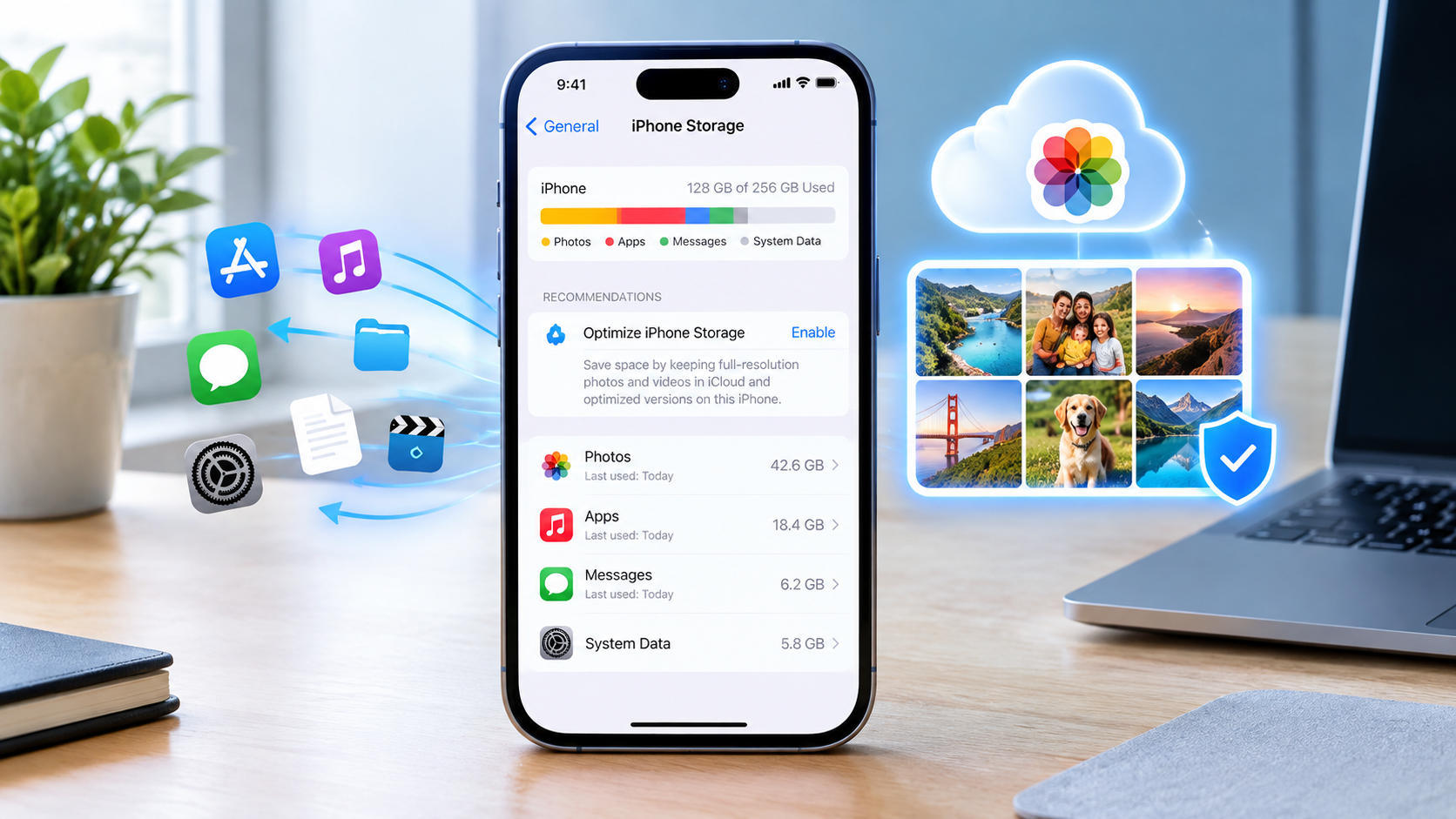
Running out of iPhone storage does not mean you have to delete your important photos.
You can often free up several gigabytes by removing unused apps, downloaded videos, large message attachments, old files, duplicate items, and other unnecessary data. If your photos are using most of the available space, Optimize iPhone Storage can also reduce the amount of storage your photo library uses locally.
This guide explains how to free up storage on iPhone without deleting important photos, including what to check first, which files are safest to remove, how iCloud Photos works, and what you should avoid deleting.
Quick Answer: How to Free Up iPhone Storage Without Deleting Photos
If you need storage quickly, follow these steps in order:
- Check Settings → General → iPhone Storage.
- Turn on Optimize iPhone Storage if you use iCloud Photos.
- Offload unused apps.
- Remove downloaded movies, music, podcasts, and other offline media.
- Delete unnecessary files from the Files app.
- Review large Messages attachments.
- Remove unnecessary screenshots and duplicate photos.
- Check large videos before deleting anything important.
- Review storage used by messaging and social media apps.
- Restart your iPhone and check the storage screen again.
The important point is that you should identify what is consuming your storage before deleting anything.
1. Check What Is Using Your iPhone Storage
The first step is to find out where your storage is actually going.
Go to:
Settings → General → iPhone Storage
Your iPhone will show how much storage is being used and provide a breakdown by category. Depending on your device and iOS version, you may also see recommendations for freeing space.
Common storage categories include:
- Apps
- Photos
- Messages
- Media
- Files
- iCloud Drive content downloaded locally
- System
- Other/System Data
Why this step matters
You may think your photos are responsible for the storage problem when the real problem is a large game, downloaded videos, message attachments, or files.
For example, if Photos uses 25 GB but an unused game uses 8 GB, deleting several important pictures may not be the best first move.
Always check the storage breakdown before removing personal files.
2. Turn On Optimize iPhone Storage for Photos
If your photo library is using most of your iPhone storage, Optimize iPhone Storage is one of the most useful options to investigate.
With iCloud Photos enabled, Apple can keep the original, full-resolution versions of your photos and videos in iCloud while storing space-saving versions on your iPhone when necessary. You can still access your photo library from the Photos app.
How to enable Optimize iPhone Storage
Go to:
Settings → [your name] → iCloud → Photos
Make sure Sync this iPhone is enabled.
Then select:
Optimize iPhone Storage
Depending on your iOS version, the exact wording or location of the storage option may differ slightly. Apple’s current instructions place the storage choice under the Photos section in iCloud settings.
What happens after you enable it?
Your iPhone can keep smaller, space-saving versions of photos and videos locally while the full-resolution originals remain in iCloud.
When you need an original, it can be downloaded again.
This can substantially reduce how much space a large photo library requires on the device.
3. Make Sure You Have Enough iCloud Storage
Optimize iPhone Storage is useful, but it does not give you unlimited cloud storage.
Your iCloud account has its own storage limit.
Go to:
Settings → [your name] → iCloud
Check how much iCloud storage you have available.
Apple provides 5 GB of iCloud storage with an account, while larger photo libraries may require additional iCloud storage.
If your iCloud storage is full, your photos may not be able to synchronize as expected.
Therefore, before relying on iCloud Photos to manage a large library, make sure there is enough available iCloud storage.
4. Understand an Important iCloud Photos Warning
There is an important difference between iCloud Photos synchronization and having a completely separate backup.
iCloud Photos keeps your photo library synchronized across devices. Changes you make to your library, including edits and deletions, can be reflected across devices using iCloud Photos.
That means you should not think:
“My photo is in iCloud, so I can delete it from my iPhone and it will definitely remain as a separate backup.”
If you delete a photo from an iCloud Photos library, the deletion can synchronize to your other devices.
Protect irreplaceable photos
For especially important photos, consider keeping another verified copy in addition to your iCloud Photos library.
Possible locations include:
- A computer
- An external storage device
- Another trusted cloud-storage service
- Another secure backup system
Before deleting anything important, verify that the additional copy actually exists and can be opened.
5. Offload Unused Apps
Apps can consume much more storage than you realize.
Go to:
Settings → General → iPhone Storage
Look through the apps and check how much space they use.
If you rarely use an app, consider Offload App.
Offloading removes the app itself while keeping its documents and data. You can reinstall the app later if needed.
Offload vs. Delete
Offload App
- Removes the app
- Keeps its documents and data
- Frees the storage used by the app
- Lets you reinstall it later
Delete App
- Removes the app
- Removes its related data from the device
- Usually frees more storage
If you are unsure whether an app contains important local data, check it before deleting it.
6. Enable Offload Unused Apps Automatically
If you frequently run out of storage, you can allow your iPhone to automatically offload apps you do not use.
Go to:
Settings → Apps → App Store
Then look for:
Offload Unused Apps
Apple says this feature can remove unused apps while keeping their documents and data so they can be reinstalled later.
This is particularly useful if you have many apps installed but only use some of them regularly.
7. Delete Downloaded Movies and TV Shows
Downloaded videos can consume enormous amounts of storage.
Check apps where you download videos for offline viewing.
Look for:
- Movies
- TV episodes
- Offline videos
- Saved shows
- Other downloaded media
If you have already watched something and no longer need it offline, removing the downloaded copy can recover storage without touching your personal photos.
Apple specifically recommends reviewing downloaded videos when trying to free iPhone storage.
8. Remove Downloaded Music and Podcasts
Music and podcasts can also accumulate over time.
Review your offline downloads and remove content you no longer need.
Look for:
- Downloaded albums
- Offline playlists
- Podcast episodes
- Audiobooks
- Other offline audio
You can keep the content in your streaming or media library while removing the local download when the app supports it.
This is another way to create space without deleting important photographs.
9. Clean Up the Files App
The Files app is easy to forget.
Open:
Files → Browse
Check locations such as:
- On My iPhone
- iCloud Drive
- Downloads
Look for large files you no longer need.
These could include:
- PDFs
- ZIP files
- Videos
- Documents
- Old downloads
- Duplicate files
Apple identifies Files app content and downloaded files as potential sources of device storage usage.
Before deleting a document, make sure it is not something you need for work, school, finances, travel, or another important purpose.
10. Clean Up Safari Downloads
Downloaded files from Safari can remain on your iPhone until you remove them.
Open:
Files → Browse → Downloads
Review the folder and remove files you no longer need.
Pay particular attention to large:
- PDFs
- Videos
- ZIP files
- Images
- Documents
This is often a safer place to recover storage than immediately deleting personal photographs.
11. Review Large Message Attachments
Messages can accumulate photos, videos, GIFs, documents, and other attachments.
Over time, years of conversations can occupy significant storage.
Go to:
Settings → General → iPhone Storage → Messages
Depending on your iOS version, you may see different categories or recommendations.
Review large attachments and remove items you no longer need.
Apple specifically lists messages and their attachments among the common sources of iPhone storage usage.
Be careful
Do not delete an entire conversation simply because it uses storage.
If a conversation contains important information, review the attachments individually where possible.
12. Review WhatsApp and Other Messaging Apps
Third-party messaging apps can also store large amounts of media.
A busy group chat can accumulate:
- Photos
- Videos
- Documents
- GIFs
- Voice messages
- Forwarded media
Open the storage-management section of the messaging app and look for large files you no longer need.
Before deleting anything, make sure it is not an important document, photograph, or video.
13. Remove Unnecessary Screenshots
Screenshots are another type of image that can accumulate without you noticing.
Open the Photos app and look for your screenshots.
Depending on your iOS version, you can find them under:
Photos → Collections → Media Types → Screenshots
Review them and remove screenshots that no longer have a purpose.
Examples include:
- Old shopping pages
- Temporary instructions
- Expired tickets
- Old maps
- Social media screenshots
- Temporary reference images
But keep screenshots containing information you may need later.
14. Merge Duplicate Photos and Videos
If your iPhone identifies duplicate photos or videos, review them before deciding what to remove.
On supported iOS versions, you can find duplicate items through the Photos app’s utilities section.
Duplicates can include:
- Identical photographs
- Repeated videos
- Multiple copies of the same image
Apple recommends merging duplicate photos and videos as one way to reduce storage usage.
Don’t confuse duplicates with similar photos
Two photos may look almost identical but still contain different moments.
For example, you might have taken several pictures of a family event within a few seconds.
Review them before merging or deleting anything.
15. Check Your Large Videos Before Deleting Photos
Videos usually deserve special attention because individual files can be much larger than ordinary photos.
Look through your video library for:
- Long recordings
- Screen recordings
- Repeated clips
- Accidental recordings
- Videos you have already backed up
- Old videos you no longer need
If a video is important, do not delete it simply because it is large.
Instead, consider transferring it to another storage location and verifying the copy first.
16. Transfer Important Photos to a Computer
If you do not want to use iCloud Photos, another option is to transfer important photos and videos to a computer.
Apple also recommends transferring photos and videos to a computer when you need to reduce the amount stored on the iPhone.
However, follow an important rule:
Copy first. Delete second.
After transferring your photos:
- Open the destination folder.
- Open several photos.
- Check several videos.
- Make sure the files are complete.
- Confirm that important dates and files are present.
- Only then consider deleting the originals from your iPhone.
If the photos are irreplaceable, keeping more than one verified copy is even safer.
17. Check Mail and Large Attachments
Email and its attachments can also consume device storage.
If you receive many large files through email, review your Mail storage and attachments.
Look for old files you downloaded but no longer need.
Important documents should be saved somewhere appropriate before removing any local copy.
18. Don’t Waste Time Trying to Manually Delete System Data
You may notice a large System Data or Other category in your iPhone Storage screen.
This can include things such as caches, logs, indexes, system data, and other files used by iOS.
You generally should not try to manually hunt down random system files and delete them.
iOS manages many temporary and cached files automatically, including removing some items when more storage is needed.
If System Data is unusually large
Start with normal storage management:
- Restart the iPhone
- Install available iOS updates
- Remove unnecessary downloads
- Review large apps
- Review Messages attachments
- Remove offline media
- Give iOS some time to recalculate storage
Avoid using unknown “cleaner” apps that claim they can safely delete protected iOS system files.
19. Use iPhone Storage Recommendations
Your iPhone may provide recommendations directly on the storage screen.
Go to:
Settings → General → iPhone Storage
Review the recommendations shown for your device.
Apple says available recommendations can include actions that help optimize storage, such as removing unused apps or reviewing content that can be deleted.
Don’t automatically accept every recommendation.
Read what will be removed first.
20. Keep at Least Some Free Storage Available
You do not want to operate your iPhone with virtually no free space.
Apple recommends maintaining at least 1 GB of available storage to help avoid performance issues.
More free space can also make it easier to install updates, download files, and take new photos and videos.
If your iPhone is constantly showing a storage warning, consider making a larger amount of space available rather than repeatedly deleting one or two files.
The Safest Order to Free iPhone Storage
If your main priority is protecting important photos, use this order:
First: Remove things that are clearly replaceable
Start with:
- Unused apps
- Downloaded movies
- Downloaded TV shows
- Offline music
- Old podcasts
- Safari downloads
- Unnecessary Files app content
Second: Review large attachments
Then check:
- Messages
- Messaging apps
- Large documents
Third: Review your photo library
Only after dealing with the easier categories should you consider:
- Duplicate photos
- Duplicate videos
- Screenshots
- Large unwanted videos
Fourth: Optimize your photo storage
If Photos is still consuming most of the storage, consider:
iCloud Photos + Optimize iPhone Storage
provided you have enough iCloud storage and understand how synchronization works.
What You Should Not Delete Just to Free Space
When your iPhone is almost full, avoid deleting files randomly.
Be especially careful with:
- Important family photos
- Personal videos
- Work documents
- Financial records
- IDs and important documents
- School files
- Irreplaceable memories
- Photos that exist nowhere else
Also avoid permanently emptying Recently Deleted unless you have confirmed that you no longer need those items.
What Happens to Photos When You Turn On Optimize iPhone Storage?
When Optimize iPhone Storage is enabled, your iPhone can keep space-saving versions locally while the full-resolution originals remain in iCloud.
When you need an original, your device can download it again.
This means you can keep your photo library accessible without requiring every full-resolution original to remain stored locally all the time.
However, you need enough available iCloud storage for your library.
Can You Free Up iPhone Storage Without Deleting Any Photos?
Yes.
You can often recover storage without deleting a single photograph.
Start with:
- Unused apps
- Downloaded videos
- Offline music
- Podcasts
- Files and downloads
- Message attachments
- Messaging-app media
- Mail attachments
- Duplicate files
- Screenshots
If Photos itself is the largest category, Optimize iPhone Storage can reduce the amount of local storage used by the library without requiring you to manually delete your important photos.
How to Free Up iPhone Storage Quickly
If your iPhone is showing a Storage Almost Full warning, use this quick cleanup process.
Step 1: Check iPhone Storage
Go to:
Settings → General → iPhone Storage
Find the largest categories.
Step 2: Offload unused apps
Remove the app itself while keeping its data.
Step 3: Delete old downloads
Check:
Files → Browse → Downloads
Step 4: Remove watched offline videos
Check your streaming apps.
Step 5: Remove downloaded music and podcasts
Keep only the content you need offline.
Step 6: Review Messages
Look for large attachments and videos.
Step 7: Check messaging apps
Review large media files.
Step 8: Review duplicate photos and screenshots
Delete only items you have confirmed are unnecessary.
Step 9: Optimize Photos
If you use iCloud Photos, enable:
Optimize iPhone Storage
Step 10: Check your storage again
Return to:
Settings → General → iPhone Storage
Give the iPhone some time to update the storage calculation.
Frequently Asked Questions
How do I free up storage on iPhone without deleting important photos?
Go to Settings → General → iPhone Storage and identify what is using the most space. Then remove unused apps, downloaded videos, offline music, old files, large message attachments, and other unnecessary data. If Photos is the main storage user, use iCloud Photos with Optimize iPhone Storage to reduce local photo storage.
What is the safest way to free iPhone storage?
Start with data that is clearly replaceable, such as unused apps, downloaded movies, old downloads, offline music, and unnecessary attachments. This lets you recover space without immediately touching important photos.
Does Optimize iPhone Storage delete my photos?
No. With iCloud Photos enabled, Optimize iPhone Storage allows the iPhone to keep space-saving versions locally while the full-resolution originals remain in iCloud.
Will I lose my photos if I delete them from my iPhone with iCloud Photos enabled?
Deleting a photo from an iCloud Photos library can synchronize that deletion across your devices. iCloud Photos is designed to keep your library synchronized, so don’t treat it as an independent second copy of every photo.
Why is my iPhone storage full when I don’t have many photos?
Apps, games, videos, messages, downloaded files, music, podcasts, Mail attachments, and system data can all consume storage. Check Settings → General → iPhone Storage to identify the biggest categories.
How can I free storage without deleting anything important?
Start with unused apps, offline videos, music downloads, podcasts, Files app downloads, Safari downloads, and large message attachments. These categories can often be reduced without touching important photographs.
Does offloading an app delete its data?
Offloading removes the app but keeps its documents and data, allowing you to reinstall the app later.
Should I delete System Data on my iPhone?
You should not randomly delete system files. System Data can contain caches, logs, indexes, and other system information managed by iOS. The operating system handles many temporary and cached files automatically.
How much free storage should an iPhone have?
Apple recommends maintaining at least 1 GB of available storage to help avoid performance problems.
Final Takeaway
You don’t need to sacrifice important photos just because your iPhone is running out of storage.
The safest approach is to find the real source of the storage problem first.
Start with:
Settings → General → iPhone Storage
Then work through unused apps, downloads, offline media, Messages attachments, Files, duplicate items, and other unnecessary content.
If your photo library is the main problem, consider iCloud Photos with Optimize iPhone Storage. This allows your iPhone to keep space-saving versions locally while full-resolution photos and videos remain in iCloud.
Most importantly, don’t delete an important photo merely because it is taking up space.
Copy first, verify the copy, and delete only when you are certain the original is no longer needed.

Post Comment