How to Check If an iPhone Is iCloud Locked Before Buying
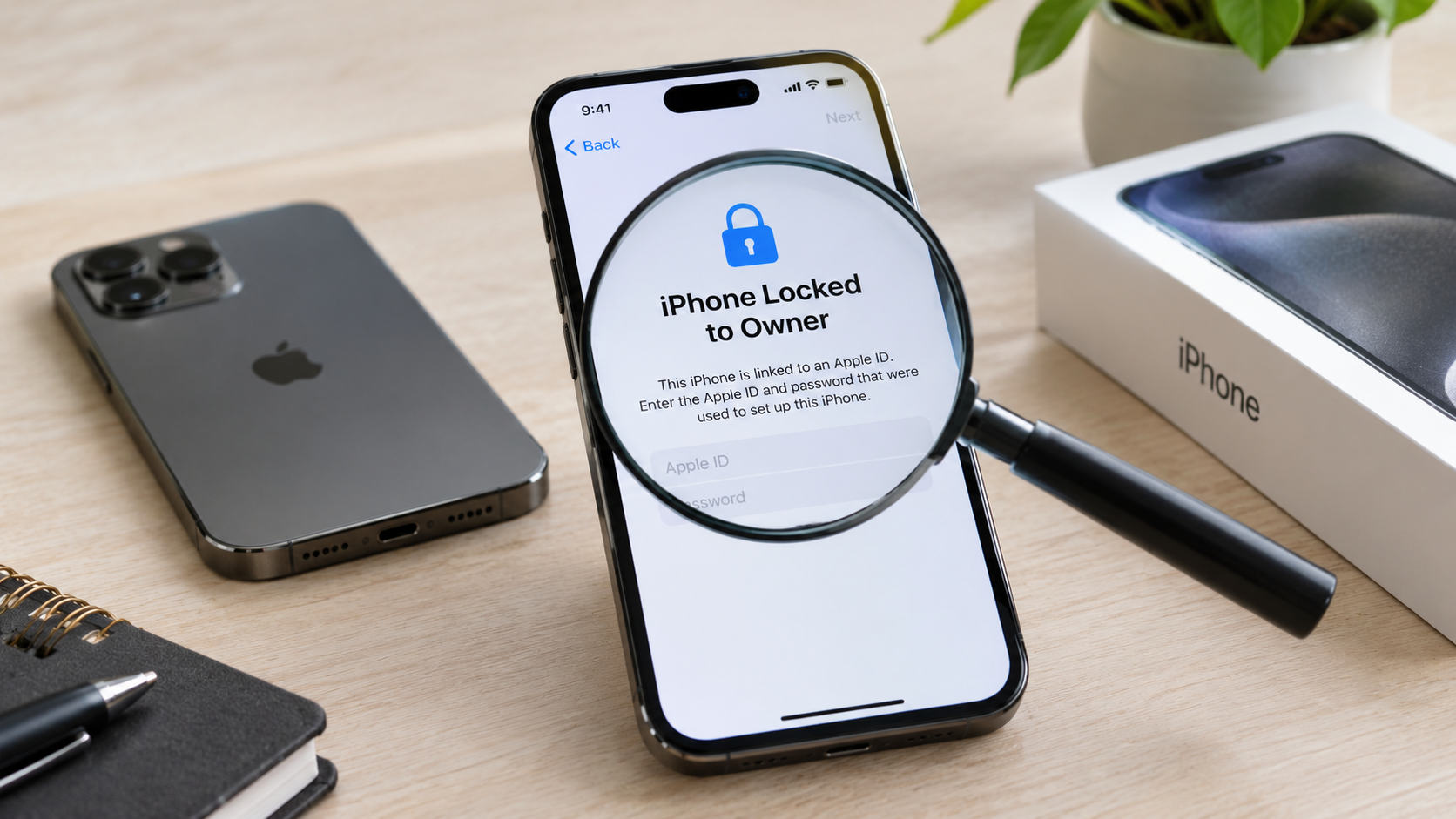
If you are buying a used iPhone, one of the most important checks is knowing how to check if an iPhone is iCloud locked before you pay.
An iPhone that is still protected by Activation Lock can remain linked to the previous owner’s Apple Account. Even if the phone looks perfectly normal, you may not be able to activate and use it after it has been erased.
The good news is that checking an iPhone for an iCloud lock is straightforward.
The most reliable method is to turn on the iPhone, check for the “iPhone Locked to Owner” screen, and go through the setup process. Apple specifically recommends making sure a used iPhone has been erased and is no longer linked to the previous owner’s account before taking ownership.
This guide explains exactly what to look for, how to check an iCloud-locked iPhone before buying, what the different screens mean, whether an IMEI can confirm an iCloud lock, and what to do if the seller’s Apple Account is still linked.
Quick Answer: How to Check If an iPhone Is iCloud Locked
To check if an iPhone is iCloud locked:
- Turn on the iPhone.
- Look for the “iPhone Locked to Owner” screen.
- If you see the Lock Screen or Home Screen, ask the seller to erase the iPhone.
- Start the iPhone setup process.
- If setup asks for the previous owner’s Apple Account information, the iPhone is still linked to their account.
- Ask the seller to remove the device from their account.
- Continue setup yourself to confirm that the iPhone can be activated.
Do not pay for the iPhone while Activation Lock is still enabled.
Apple’s current guidance says a used iPhone is ready for a new owner when it has been erased and can proceed through activation without requiring the previous owner’s account.
What Does “iCloud Locked” Mean on an iPhone?
“iCloud locked” is the term people commonly use when an iPhone has Activation Lock enabled.
Activation Lock is an Apple security feature associated with Find My. When Find My is enabled, Activation Lock is automatically enabled. When an iPhone is activated or recovered, it contacts Apple to check its Activation Lock status.
This means an iPhone can be erased but still remain associated with the previous owner’s Apple Account.
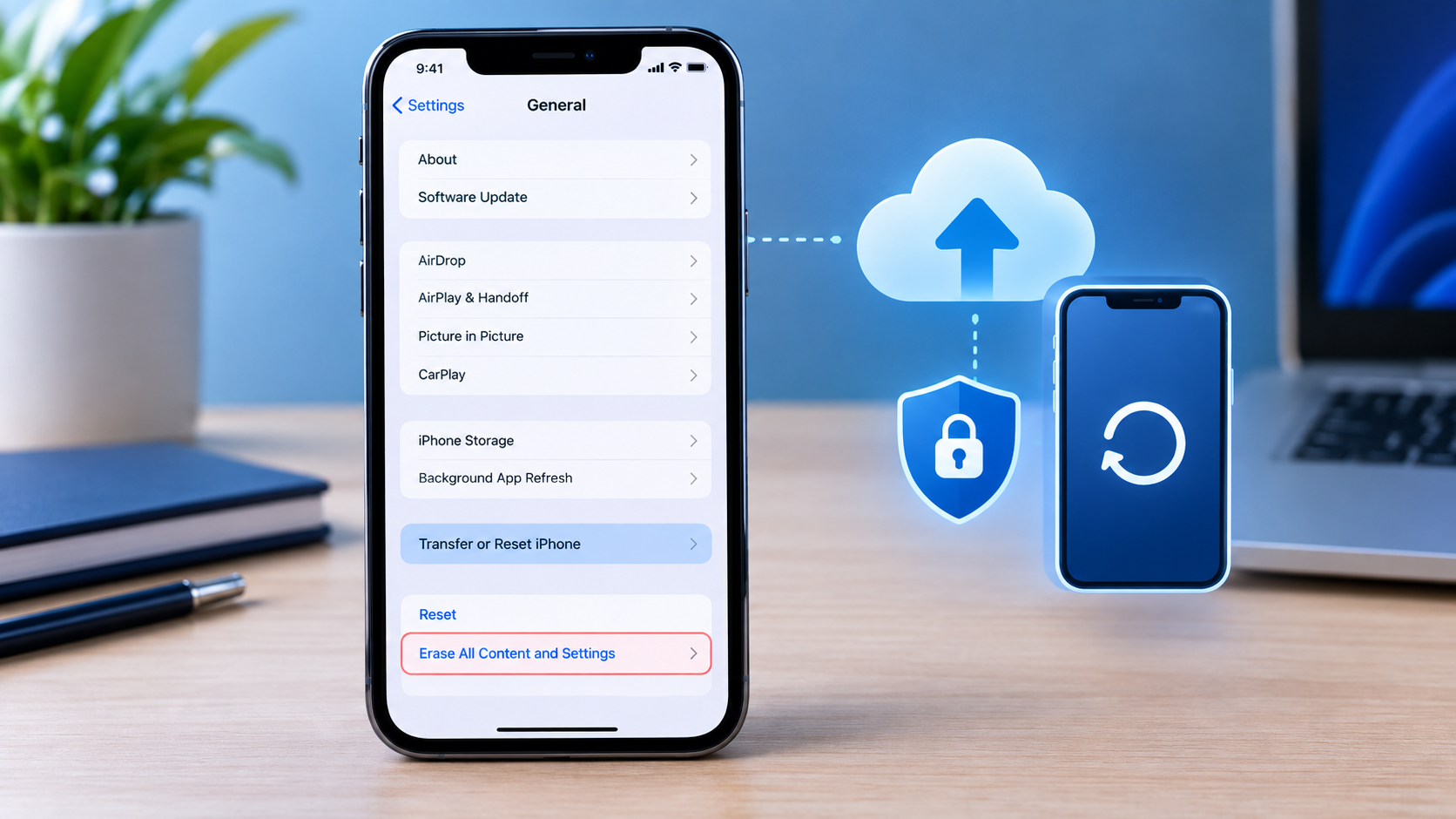
That is why a factory reset alone does not necessarily make a used iPhone ready for a new owner.
In simple terms:
iCloud/Activation Lock = the iPhone is still associated with the previous owner’s Apple Account.
No Activation Lock = the previous owner has properly removed the device and you can activate it with your own account.
How to Check If an iPhone Is iCloud Locked
There are several things you can check, but the setup and activation process is the most important test.
1. Turn On the iPhone
Start by turning on the iPhone.
Pay attention to which screen appears.
You may see:
- The Lock Screen
- The Home Screen
- The Hello screen
- “iPhone Locked to Owner”
Each one tells you something different.
2. Check for “iPhone Locked to Owner”
This is the quickest warning sign.
If the iPhone displays:
iPhone Locked to Owner
the device is protected by Activation Lock.
This means it is still linked to the previous owner’s Apple Account.
Do not buy the iPhone in this condition.
If you are with the seller, ask them to remove Activation Lock while you are present.
Apple specifically advises buyers not to take ownership of a used iPhone when Activation Lock is enabled.
What if the seller says they can remove it later?
Don’t rely on that promise.
Have the seller remove the lock before you complete the purchase.
3. What If the iPhone Shows the Lock Screen?
If you turn on the iPhone and see the normal passcode Lock Screen, the phone has not been erased.
This does not prove that the iPhone is free of Activation Lock.
Ask the seller to erase the iPhone before you buy it.
Apple’s guidance says that if a used iPhone displays the Lock Screen or Home Screen, the device hasn’t been erased and the buyer should ask the seller to erase it before taking ownership.
This is important because simply seeing a working Home Screen does not tell you whether the previous owner’s account will be required after the phone is erased.
4. Start the iPhone Setup Process
Once the seller has erased the iPhone, begin setting it up yourself.
Follow the onscreen instructions.
The purpose of this step is to determine whether the iPhone can be activated without the previous owner’s Apple Account.
If setup asks for the previous owner’s Apple Account
Stop.
The iPhone is still linked to the previous owner’s account.
Give the phone back to the seller and ask them to remove it from their account.
Apple says that if setup requests the previous owner’s Apple Account information, the device remains linked to that account.
If you can proceed with activation
Continue through the setup process.
A device that has been properly erased and removed from the previous owner’s account can be activated for the new owner.
5. Understand What the “Hello” Screen Means
Seeing the Hello screen is a good sign because it indicates that the iPhone has been erased.
However, don’t stop your check there.
Apple’s guidance says that when you see the Hello screen, you need to proceed through setup and activation before you can start using the device.
Therefore, when buying a used iPhone in person, the safest approach is:
Hello screen → start setup → activate the iPhone → confirm the previous owner’s account is not requested.
iPhone Locked to Owner vs Hello Screen
| Screen or situation | What it means | What you should do |
|---|---|---|
| iPhone Locked to Owner | Activation Lock is enabled | Don’t buy until removed |
| Previous owner’s Apple Account requested | Still linked to previous owner | Ask seller to remove it |
| Lock Screen | Phone hasn’t been erased | Ask seller to erase it |
| Home Screen | Phone hasn’t been erased | Ask seller to erase it |
| Hello screen | Phone has been erased | Continue setup |
| Setup completes without previous owner’s account | Ready for activation by new owner | Continue your inspection |
The most important warning signs are “iPhone Locked to Owner” and a setup request for the previous owner’s Apple Account.
Can You Check If an iPhone Is iCloud Locked Without Erasing It?
You can sometimes identify a problem before erasing the phone, but you shouldn’t consider simply viewing the Home Screen proof that the iPhone is free of Activation Lock.
For example, a seller may hand you an iPhone that works normally and say:
“Everything is fine. You can reset it later.”
That isn’t the safest way to buy a used iPhone.
Instead, ask the seller to properly erase the device and allow you to begin the setup process.
This gives you a much stronger confirmation that the previous owner’s account is no longer required.
Can You Check iCloud Lock From Settings?
If the iPhone is still accessible, you can inspect its Apple Account and Find My settings.
However, Settings should not replace the activation test when you are buying the phone.
The seller should properly remove the device from their account and erase it before you take ownership.
Apple provides a specific process for removing Activation Lock before selling or giving away an iPhone.
Can You Check iCloud Lock With the IMEI?
The IMEI is useful when checking a used iPhone, but don’t rely on an IMEI lookup alone to determine whether an iPhone is free of Activation Lock.
The most important verification is what happens when the device is activated.
This distinction matters because an IMEI can help identify a device and may be useful for checking other information, but Activation Lock is tied to the device’s relationship with an Apple Account and Find My.
Therefore:
IMEI check = useful additional check
Actual activation/setup test = essential check
Don’t assume that a “clean” IMEI automatically means the iPhone has no Activation Lock.
Is iCloud Lock the Same as Activation Lock?
For everyday used-iPhone buying, the terms are commonly used to describe the same problem.
Apple’s official term is Activation Lock.
It is part of Find My and is designed to prevent someone else from using an iPhone if it has been lost or stolen.
So when someone asks:
“Is this iPhone iCloud locked?”
they are generally asking:
“Is Activation Lock still enabled on this iPhone?”
Is iCloud Lock the Same as Carrier Lock?
No.
These are two completely different types of locks.
Activation Lock
Activation Lock is connected to the previous owner’s Apple Account and Find My.
It can prevent a new owner from activating the iPhone.
Carrier Lock
Carrier Lock determines whether the iPhone can be used with different mobile network providers.
Apple says you can check this by going to:
Settings → General → About
Then look for Carrier Lock or Network Provider Lock, depending on the iOS wording.
If it says:
“No SIM restrictions”
the iPhone is unlocked for use with different carriers.
Why check both?
A used iPhone can be free of Activation Lock but still have a carrier restriction.
So when buying a used iPhone, check:
Activation Lock + Carrier Lock
separately.
How to Check If an iPhone Is Carrier Unlocked
After the iPhone has been successfully activated, go to:
Settings → General → About
Find:
Carrier Lock / Network Provider Lock
If it says:
No SIM restrictions
the iPhone is carrier unlocked.
If a particular network provider is shown instead, the phone may be restricted to that provider.
This check is separate from iCloud/Activation Lock.
Can a Factory Reset Remove iCloud Lock?
A normal factory reset should not be treated as a way to bypass Activation Lock.
Activation Lock is designed to remain associated with the device even after it has been erased.
Apple explains that Activation Lock can continue to protect an iPhone after it has been remotely erased.
That’s why you should never buy an iPhone simply because the seller says:
“I already reset it.”
The important question is:
Can you activate it without the previous owner’s Apple Account?
How the Seller Can Remove iCloud/Activation Lock
If the seller is the legitimate owner, they need to remove the device from their Apple Account and turn off Activation Lock.
If they still have the iPhone, Apple provides a process for turning off Find My and removing Activation Lock.
If they no longer have the device, Apple also provides a way to remove Activation Lock online.
According to Apple, the owner can sign in through Find My on the web, select the device, and choose Remove This Device when the appropriate conditions are met.
For a buyer, the safest procedure is:
- Ask the seller to remove their account.
- Ask them to erase the iPhone.
- Start the setup process yourself.
- Confirm that the previous owner’s account is not requested.
- Continue activation.
- Only then complete the purchase.
What If the Previous Owner Is Not With You?
If you bought an iPhone and later discover that it is still linked to someone else’s Apple Account, contact the seller.
Ask the previous owner to remove the device from their account.
Apple says that if the previous owner isn’t present, they can use a browser to remove the device from their account.
If the seller refuses or cannot resolve the issue, use the marketplace’s return or buyer-protection process where available.
What If You Already Bought an iCloud-Locked iPhone?
If you already paid for the iPhone and discover that it is Activation Locked, contact the seller immediately.
Your options depend on the circumstances.
If you can contact the seller
Ask them to remove the iPhone from their Apple Account.
If you bought it online
Contact the seller or marketplace and request a return if the device was advertised as unlocked or ready to use.
If you are the legitimate owner
Apple provides an Activation Lock support process for situations where you have proof of purchase documentation.
Do not assume that a third-party “iCloud unlock” service is legitimate.
The proper solution is to have the legitimate owner remove Activation Lock or use Apple’s official support process where applicable.
How to Check a Used iPhone Before Buying
Checking iCloud/Activation Lock is only one part of inspecting a used iPhone.
Before paying, also check:
- Activation Lock
- Carrier Lock
- IMEI
- Serial number
- Battery health
- Face ID
- Touch ID, where applicable
- Cameras
- Speakers
- Microphone
- Charging port
- Wi-Fi
- Bluetooth
- Mobile network
- Display
- Touchscreen
- Physical damage
- Parts and Service History
Apple’s current pre-owned iPhone guidance recommends checking the device’s physical condition, battery health, Parts and Service History where available, and network-provider lock.
Check Parts and Service History
If the iPhone is running a supported version of iOS, you may be able to see Parts and Service History.
Go to:
Settings → General → About
Depending on the model and repairs performed, you may see information about replaced parts.
Apple says this section can identify certain parts as genuine Apple parts or show an Unknown designation when certain conditions apply.
This doesn’t tell you whether the phone is iCloud locked, but it can help you determine whether the used iPhone has had repairs or replacement parts.
How to Check an iPhone Bought Online
Buying online requires extra caution because you may not be able to inspect the device before paying.
Before buying, ask the seller:
- Is the iPhone Activation Locked?
- Has Find My been turned off?
- Has the iPhone been erased?
- Can you provide the IMEI?
- Is the phone carrier unlocked?
- Is there a return policy?
- Can I return it if it arrives Activation Locked?
If possible, buy from a seller that provides a clear return policy.
When the phone arrives, don’t immediately assume it is safe because it powers on.
Turn it on and perform the activation check.
If you see:
“iPhone Locked to Owner”
or setup requests the previous owner’s Apple Account, contact the seller and follow the platform’s return process.
Apple also recommends returning an online purchase if it displays the “iPhone Locked to Owner” screen.
7 Red Flags When Buying a Used iPhone
Watch for these warning signs.
1. The seller won’t let you test the phone
If you are buying in person, you should be able to inspect and test the device.
2. The seller says “don’t reset it”
This can prevent you from discovering an Activation Lock problem.
3. The iPhone shows “iPhone Locked to Owner”
This is a direct Activation Lock warning.
4. The seller says they will remove iCloud later
It’s safer to have the issue resolved before payment.
5. Setup requests the previous owner’s Apple Account
The phone is still linked to that account.
6. The seller only provides an IMEI screenshot
An IMEI screenshot should not replace the actual activation test.
7. There is no return option
This increases your risk if the phone arrives with an activation problem.
iCloud Lock Check: What You Should See
Use this quick reference when inspecting a used iPhone.
| What you see | What it means | Buy? |
|---|---|---|
| “iPhone Locked to Owner” | Activation Lock enabled | No |
| Previous owner’s Apple Account requested during setup | Still linked | No |
| Lock Screen | Not erased | Ask seller to erase |
| Home Screen | Not erased | Ask seller to erase |
| Hello screen | Erased | Continue setup |
| Setup completes without previous owner’s account | Ready for activation | Continue inspection |
| “No SIM restrictions” | Carrier unlocked | Good for carrier compatibility |
The “iPhone Locked to Owner” screen is the clearest immediate warning, while successfully progressing through setup without the previous owner’s account provides the practical confirmation you need.
Frequently Asked Questions
How do I check if an iPhone is iCloud locked?
Turn on the iPhone and look for “iPhone Locked to Owner.” If you don’t see that message, start the setup process. If setup asks for the previous owner’s Apple Account information, the iPhone is still linked to that account.
How do I know if an iPhone is iCloud locked before buying?
Ask the seller to erase the iPhone, then begin the setup process yourself. If the previous owner’s Apple Account is requested, don’t complete the purchase until the seller removes the device from their account.
What does “iPhone Locked to Owner” mean?
It means Activation Lock is enabled and the iPhone remains associated with another person’s Apple Account.
Can I check an iCloud lock with an IMEI?
An IMEI can be useful for additional checks, but you should not rely on an IMEI lookup alone. The actual activation process is the important test for determining whether the previous owner’s account is still required.
Does factory resetting an iPhone remove iCloud lock?
No. Erasing the iPhone does not by itself mean that Activation Lock has been removed. The device must be properly removed from the previous owner’s account.
Can an iCloud-locked iPhone be used?
A new owner may be unable to activate an iPhone protected by Activation Lock because the previous owner’s Apple Account information can be required.
Can the previous owner remove iCloud lock remotely?
Yes. Apple provides methods for the legitimate owner to remove Activation Lock through Find My and iCloud.com in applicable situations.
Is iCloud lock the same as carrier lock?
No. Activation Lock is associated with Find My and the Apple Account, while Carrier Lock concerns the mobile network provider.
How do I check if a used iPhone is carrier unlocked?
Go to Settings → General → About and look for Carrier Lock or Network Provider Lock. “No SIM restrictions” indicates that the iPhone is unlocked for different carriers.
Should I buy an iPhone that says “iPhone Locked to Owner”?
Don’t complete the purchase while Activation Lock is enabled. Ask the seller to remove it and then verify the activation process yourself. Apple advises buyers not to take ownership of a used iPhone protected by Activation Lock.
Final Checklist: How to Check If an iPhone Is iCloud Locked
Before paying for a used iPhone, run through this checklist:
☐ Turn on the iPhone
☐ Look for “iPhone Locked to Owner”
☐ If the Lock Screen or Home Screen appears, ask the seller to erase the device
☐ Start the setup process
☐ Check whether the previous owner’s Apple Account is requested
☐ Ask the seller to remove Activation Lock if necessary
☐ Continue setup yourself
☐ Confirm the iPhone can be activated
☐ Check Carrier Lock separately
☐ Check the IMEI and serial number
☐ Check Parts and Service History
☐ Test the major functions
☐ Confirm the return policy if buying online
Bottom Line
The safest answer to “how to check if an iPhone is iCloud locked” is simple:
Turn on the iPhone, look for “iPhone Locked to Owner,” and go through the setup process. If the previous owner’s Apple Account is requested, the iPhone is still linked to that account.
Don’t rely only on an IMEI check, a screenshot, or the seller’s verbal assurance.
For a used iPhone, the strongest practical check is to have the seller erase the device and then verify activation yourself before completing the purchase. Apple’s current guidance specifically recommends making sure the device has been erased, removed from the previous owner’s account, and is ready for activation before taking ownership.

Post Comment