How to Check iPhone Original or Not: Complete Guide
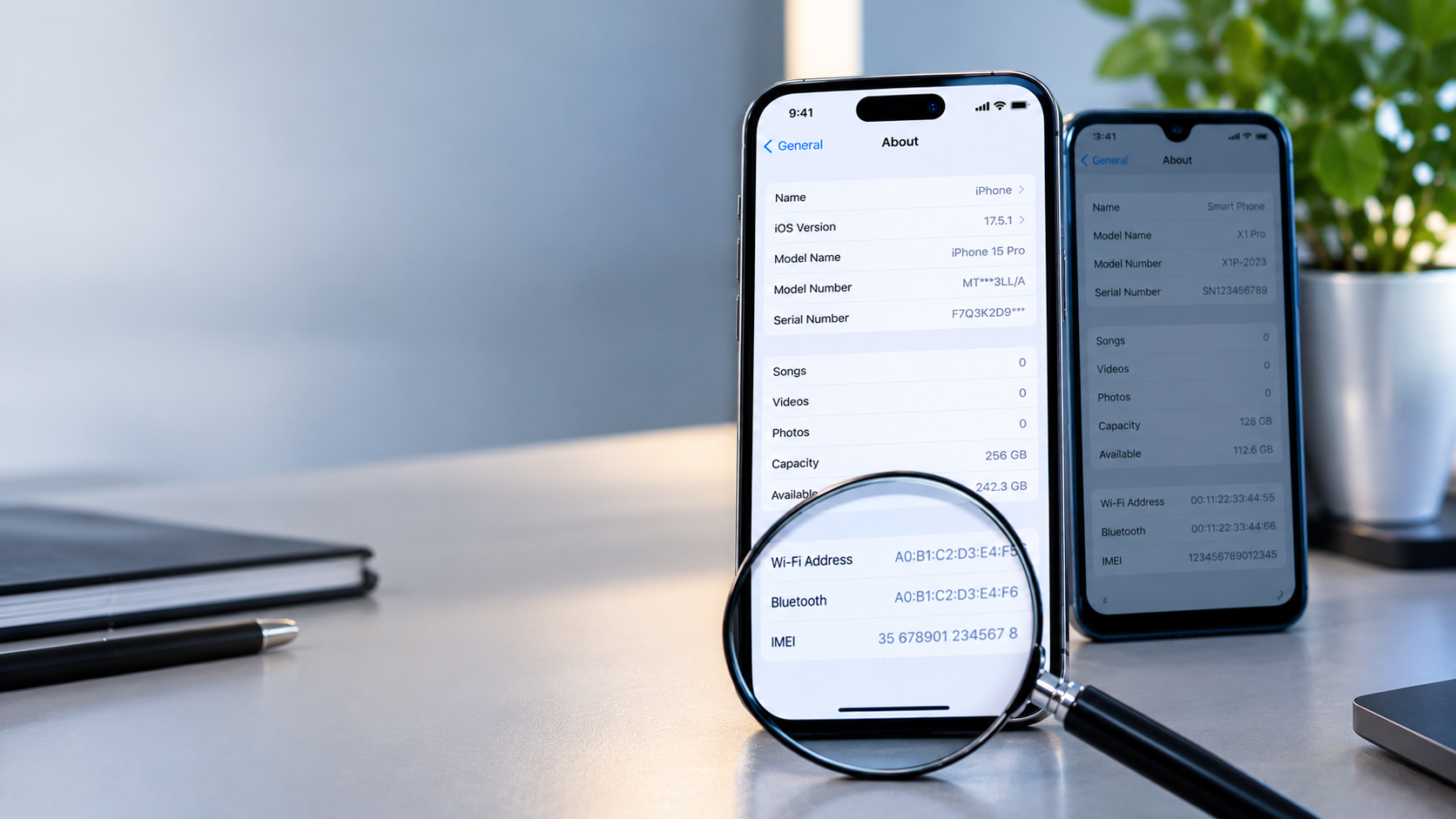
How to check iPhone original or not? The quickest way is to check the iPhone‘s serial number, IMEI, model number, software, and hardware. Start by going to Settings → General → About, where you can find important information about the device.
However, a valid serial number or IMEI alone does not prove that an iPhone is genuine. A counterfeit phone can potentially display an identifier copied from a real iPhone. For this reason, you should perform several checks before buying, especially when purchasing a used iPhone.
This guide explains how to check whether an iPhone is original, fake, used, refurbished, repaired, or incorrectly advertised.
How to Check if an iPhone Is Original or Fake
Before paying for an iPhone, follow these checks:
- Go to Settings → General → About.
- Check the serial number.
- Check the IMEI.
- Check the model number and model name.
- Verify the device information using Apple’s official services.
- Check Parts and Service History, if available.
- Make sure the phone runs genuine iOS and has the normal App Store.
- Test Face ID or Touch ID.
- Test every camera.
- Check the display, speakers, microphone and charging.
- Check the battery information.
- Make sure the previous owner’s Apple Account has been removed.
- Check that Activation Lock does not prevent you from activating the device.
- Compare the physical phone with the advertised iPhone model.
The more checks the phone passes, the more confidence you can have in what you are buying.
1. Check the iPhone Serial Number
The serial number is one of the first things you should check.
On the iPhone, open:
Settings → General → About
Scroll down until you see Serial Number.
You can tap and hold the serial number to copy it.
The serial number can help you identify information associated with the device through Apple’s official services.
Important: A serial number does not prove authenticity by itself
Do not assume that an iPhone is genuine simply because a serial number produces a result.
A sophisticated counterfeit could potentially display a serial number copied from a genuine iPhone.
Therefore, compare the information returned by Apple’s services with the actual device in your hands.
For example, if Apple’s information identifies a particular iPhone model but the physical phone is a different model, investigate before buying.
2. Verify the iPhone Using Apple’s Official Services
After finding the serial number, use Apple’s official device-support or coverage service where applicable to check the information associated with the device.
Look for information that corresponds with the iPhone you are inspecting.
Pay attention to:
- Device model
- Coverage information
- Support information
- AppleCare information, where applicable
What if Apple does not recognize the serial number?
If Apple’s service does not recognize the serial number, don’t immediately conclude that the phone is fake.
There can be different reasons for a verification problem, including incorrect entry or changes to Apple’s verification services.
However, an unrecognized identifier is a warning sign that requires further investigation, especially when combined with other inconsistencies.
3. Check the iPhone IMEI
IMEI stands for International Mobile Equipment Identity.
It is another important identifier used to identify a mobile device.
To find the IMEI, go to:
Settings → General → About
Look for IMEI.
You can also use the phone’s dialer and enter:
*#06#
The device may display its IMEI information.
Compare the identifiers
Where applicable, compare the IMEI shown on the device with information supplied with the phone.
If identifiers don’t correspond, ask the seller for an explanation before paying.
However, remember that an IMEI is also not a standalone authenticity test.
A copied identifier can appear on a counterfeit device.
4. Check the iPhone Model Number
Go to:
Settings → General → About
Look for the Model Number.
Use Apple’s official model information to determine whether the model number corresponds with the iPhone being advertised.
For example, if someone claims to be selling a particular iPhone generation, the model information should correspond with that device.
Also compare the phone’s:
- Camera arrangement
- Screen size
- Buttons
- Charging connector
- Physical design
- Available features
A mismatch is a reason to stop and investigate.
5. Check Whether the iPhone Runs Genuine iOS
This is one of the most useful checks for detecting counterfeit iPhones.
Some fake iPhones use Android software modified to look like iOS.
The phone may have:
- An iPhone-style home screen
- Apple-style icons
- Similar wallpapers
- A familiar-looking Settings menu
That does not necessarily mean it is running genuine iOS.
Check the Settings app
Open:
Settings → General → About
Explore the device information and other system settings.
The software should behave consistently with the iPhone model being advertised.
Check the App Store
Open the App Store and test it.
A counterfeit iPhone may use a fake application store or may not behave like Apple’s genuine App Store.
Do not judge authenticity solely by the appearance of the icons.
6. Check Parts and Service History
If supported by the iPhone, go to:
Settings → General → About
Look for Parts and Service History.
Depending on the iPhone and iOS version, this section can provide information about certain components that have been replaced.
You may see information relating to components such as:
- Battery
- Display
- Camera
- Other supported parts
This is especially useful when buying a used iPhone.
Does a replaced part mean the iPhone is fake?
No.
A genuine iPhone can have replacement components.
For example, someone may have replaced a damaged screen or worn battery.
Therefore, distinguish between:
Genuine iPhone
and
Brand-new iPhone with no repairs.
They are not necessarily the same thing.
7. Check Face ID or Touch ID
Test the biometric authentication system.
Depending on the model, this may be:
- Face ID
- Touch ID
Don’t simply ask the seller whether it works.
Test it yourself.
Try setting up the biometric feature and using it to unlock the device.
A problem with Face ID or Touch ID does not automatically mean the iPhone is fake.
It could indicate:
- Previous damage
- A repair
- A replacement component
- Hardware failure
But it is still something you should investigate before buying.
8. Test All the Cameras
Open the Camera app and test the cameras.
Depending on the iPhone model, test:
- Main camera
- Ultra-wide camera
- Telephoto camera
- Front camera
- Flash
- Autofocus
- Video recording
- Zoom
- Portrait features
If the seller says you are buying an iPhone with multiple rear cameras, make sure the cameras actually function as expected.
A counterfeit phone may imitate the appearance of multiple cameras while some of them are not genuine functioning cameras.
9. Check the iPhone Display
Inspect the entire display.
Look for:
- Unresponsive areas
- Flickering
- Lines
- Strange colors
- Uneven brightness
- Touch problems
- Cracks
- Poor screen fitting
Open different apps and move your finger across the entire screen.
A replacement screen does not automatically mean fake
A genuine iPhone can have a replacement display.
The important thing is to determine the phone’s actual condition and whether the seller has accurately described it.
10. Check the Apple Account and Activation Lock
This is one of the most important checks when buying a used iPhone.
The previous owner’s Apple Account should be removed from the device before you complete the purchase.
The phone should also be available for you to activate normally.
Do not buy a phone that remains linked to someone else’s account
If the seller says:
“I’ll remove the account later.”
or asks you to pay first and promises to deal with the account afterward, do not treat the phone as ready for purchase.
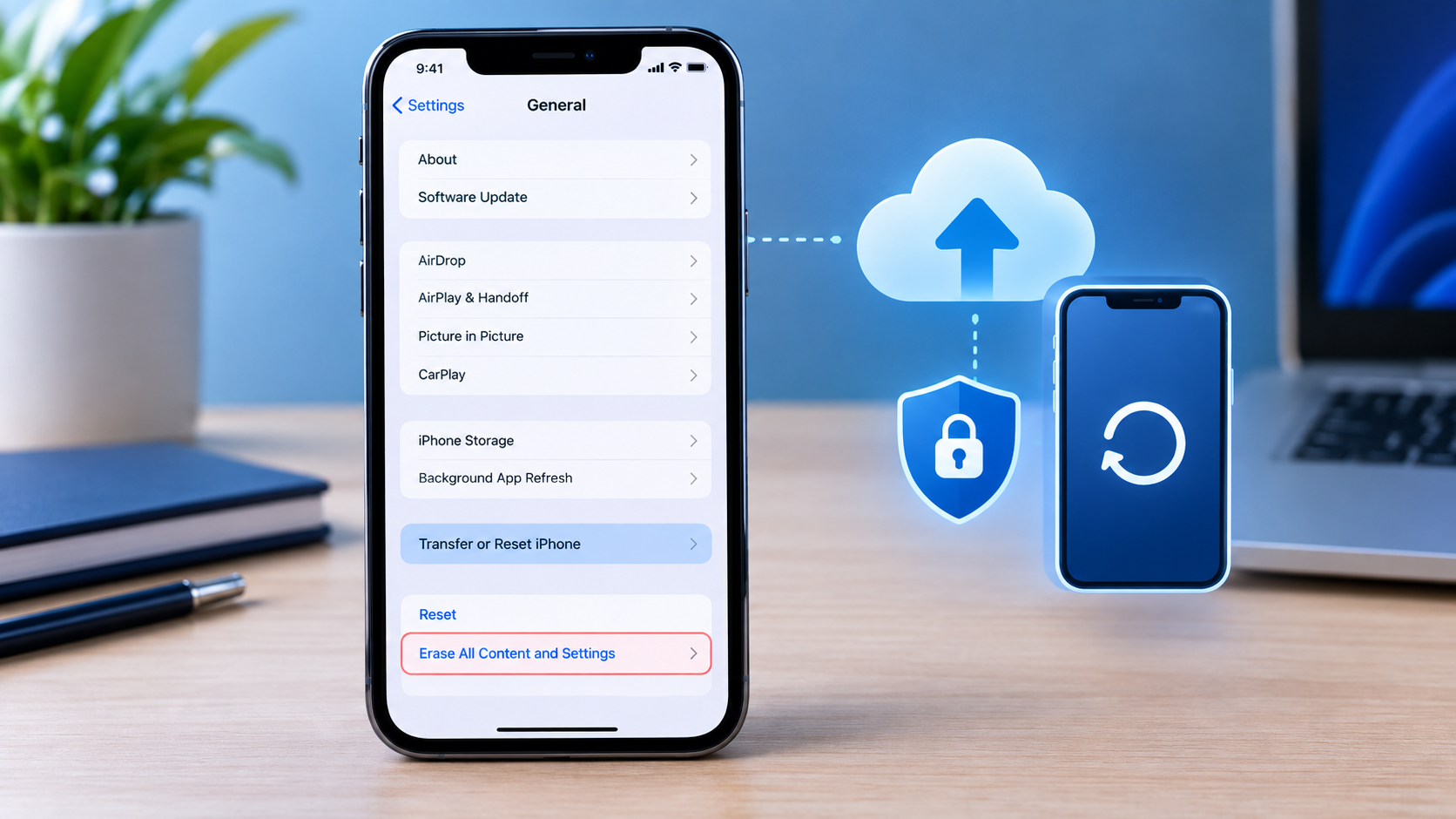
Have the seller properly remove their account and erase the device.
Then verify that the iPhone can be activated by the new owner.
11. Check the Battery Health
Go to:
Settings → Battery → Battery Health & Charging
The available information depends on the iPhone model and software version.
Battery health is particularly important when buying a used iPhone because a heavily used device may need a battery replacement.
However:
Battery health does not prove whether an iPhone is original or fake.
A genuine iPhone can have a replaced battery.
Use battery information to assess the condition of the phone, not as your only authenticity test.
12. Check the iPhone Storage Capacity
Go to:
Settings → General → iPhone Storage
Check the storage information against what the seller advertised.
For example, if the seller says the phone has a particular storage capacity but the device reports something different, ask questions before buying.
Also check the model information because storage options vary between iPhone generations.
13. Check the Physical Design
Look closely at the phone itself.
Compare it with Apple’s information for the exact model.
Check:
- Camera layout
- Apple logo
- Buttons
- Speaker openings
- Charging port
- SIM tray, where applicable
- Screen design
- Camera bump
- Frame
- Overall dimensions
A counterfeit manufacturer may copy the general appearance of an iPhone but make mistakes in small details.
If the physical phone doesn’t match the advertised model, investigate before paying.
14. Check the Charging Port and Charging
Connect an appropriate charger and check whether the phone charges normally.
Also inspect the port for:
- Damage
- Loose connection
- Dirt
- Signs of previous repair
A charging problem does not mean the iPhone is fake.
It may simply indicate a damaged port or cable.
However, when buying a used device, it is another important part of the overall inspection.
15. Test the Speakers and Microphone
Play audio through the speakers.
Then make a short recording using the microphone and play it back.
Check whether:
- Speakers produce clear sound
- Microphones record properly
- Volume controls work
- There is unusual distortion
You should also test a phone call where possible.
16. Check for Signs of Previous Repairs
A used iPhone may have been opened or repaired.
Look for signs such as:
- Uneven display fitting
- Gaps around the screen
- Loose buttons
- Damaged screws
- Camera problems
- Charging problems
- Unexpected component information
- Features that no longer work correctly
Again, a repaired iPhone is not necessarily a fake iPhone.
The important issue is whether the seller accurately tells you about its condition.
17. Check the iPhone Box and Packaging
If the original box is included, compare its information with the phone.
Check identifiers and model information where applicable.
But don’t make the mistake of assuming that an original-looking box proves the phone is genuine.
Boxes and labels can be copied or replaced.
The phone itself should be your primary focus.
18. Don’t Rely on the Serial Number Alone
This is one of the most important points in this entire guide.
A buyer may enter a serial number into Apple’s verification service and see information associated with a genuine iPhone.
They may then assume:
“The phone is definitely original.”
That conclusion can be unsafe.
A counterfeit device can potentially display an identifier copied from a legitimate device.
For this reason, check several things together:
Serial number + IMEI + model number + iOS + hardware + Parts and Service History + Apple Account status
This gives you a much stronger assessment.
19. How to Check a Used iPhone Before Buying
If you’re buying a second-hand iPhone, don’t hand over your money until you’ve tested the device.
Use this process.
Step 1: Confirm the exact model
Ask the seller which iPhone model they are selling.
Step 2: Open Settings
Go to:
Settings → General → About
Check:
- Model name
- Model number
- Serial number
- IMEI
- Storage capacity
Step 3: Check Parts and Service History
Review available information about replaced components.
Step 4: Test Face ID or Touch ID
Make sure biometric authentication works.
Step 5: Test the cameras
Test every available camera and important camera function.
Step 6: Test the display
Move your finger across the entire screen.
Step 7: Test speakers and microphones
Play audio and make a recording.
Step 8: Test charging
Connect a suitable charger.
Step 9: Check battery information
Review battery health and charging information.
Step 10: Check Apple Account status
Make sure the seller has removed their account.
Step 11: Verify activation
Where practical, have the seller erase the phone and allow you to verify that it can be activated normally.
Step 12: Pay only after inspection
Don’t let pressure from the seller force you to skip important checks.
20. Red Flags That an iPhone May Be Fake
Be careful if you notice several of these signs:
- The software looks like iOS but behaves unusually.
- The App Store does not work as expected.
- The model information doesn’t match the advertised model.
- The serial number or IMEI information is inconsistent.
- The seller refuses to let you inspect Settings.
- Cameras don’t work as expected.
- Face ID or Touch ID doesn’t work when it should.
- The phone cannot be activated normally.
- The seller refuses to remove their Apple Account.
- The physical design doesn’t match the claimed model.
- The storage capacity is different from what was advertised.
- The price is unusually low without a clear explanation.
- The seller pressures you to pay before testing the phone.
One red flag does not automatically prove that a phone is counterfeit.
Look at the evidence as a whole.
How to Check iPhone Original or Not: Quick Checklist
| Check | What to Verify |
|---|---|
| Serial number | Device identifier in Settings |
| Apple verification | Information corresponds with the device |
| IMEI | Device identifier and consistency |
| Model number | Matches the advertised iPhone |
| iOS | Genuine iOS behavior |
| App Store | Apple’s App Store works normally |
| Parts & Service History | Check replaced components |
| Face ID/Touch ID | Biometric authentication works |
| Cameras | Test all available cameras |
| Display | Test the entire touchscreen |
| Battery | Check battery information |
| Storage | Confirm advertised capacity |
| Apple Account | Previous owner’s account removed |
| Activation | Phone can be activated normally |
| Physical design | Matches the exact model |
| Charging | Test charging |
| Speakers/microphone | Test audio functions |
Can a Fake iPhone Have a Real Serial Number?
Yes, potentially.
A counterfeit iPhone can potentially display a serial number copied from a genuine Apple device.
That is why checking a serial number is useful but should not be your only test.
Compare the identifier with the device’s actual model, physical characteristics and software.
Can a Fake iPhone Have a Real IMEI?
Yes, potentially.
An identifier can be copied from another device.
Therefore, an IMEI check should be treated as one part of the authentication process rather than absolute proof that the phone is genuine.
Does a Valid Apple Serial Number Mean the iPhone Is Original?
Not necessarily.
A valid serial number is useful evidence, but it doesn’t establish by itself that the physical device you’re holding is the genuine device associated with that identifier.
This is why you should also inspect:
- Model
- Software
- Hardware
- Cameras
- Face ID or Touch ID
- Parts and Service History
- Account status
Can a Refurbished iPhone Be Original?
Yes.
A refurbished iPhone can be a genuine Apple device.
The terms original, genuine, used, refurbished, repaired, and brand new describe different things.
For example, a phone can be:
- A genuine brand-new iPhone
- A genuine used iPhone
- A genuine refurbished iPhone
- A genuine repaired iPhone
- A genuine iPhone with replacement components
- A counterfeit iPhone
Therefore, when buying a used device, ask the seller exactly what condition the phone is in.
Is a Used iPhone Safe to Buy?
A used iPhone can be purchased safely when you inspect it carefully before paying.
Don’t check authenticity alone.
You should also check:
Authenticity + condition + account status + activation + battery + parts + functionality.
A genuine iPhone can still have serious damage, a weak battery, replaced components or account-related problems.
How to Check iPhone Original or Not in 5 Minutes
If you are in a hurry, perform these checks first:
1. Open Settings
Go to:
Settings → General → About
2. Check the model and identifiers
Look at:
- Model name
- Model number
- Serial number
- IMEI
- Storage
3. Check Apple’s official verification service
Compare the information associated with the device identifier with the phone in your hands.
4. Test the software
Open the App Store and explore the Settings menus.
5. Test the important hardware
Check:
- Face ID/Touch ID
- Cameras
- Display
- Speakers
- Microphone
- Charging
6. Check account status
Make sure the previous owner’s Apple Account has been removed and that the phone can be activated normally.
If several checks don’t match, don’t rush to buy the phone.
Frequently Asked Questions
How can I tell if my iPhone is original?
Start by going to Settings → General → About and checking the serial number, IMEI, model number and storage. Then verify the information using Apple’s official services and inspect the phone’s software and hardware. Don’t rely on one identifier alone.
How do I check an iPhone serial number?
Go to Settings → General → About → Serial Number. You can tap and hold the number to copy it.
How do I check an iPhone IMEI?
Go to Settings → General → About → IMEI. You can also use the phone’s dialer and enter *#06#.
Can a fake iPhone have a valid serial number?
Yes, potentially. A counterfeit phone can potentially display an identifier copied from a genuine iPhone. This is why you should perform multiple checks.
Can a fake iPhone have a valid IMEI?
Yes, potentially. A copied identifier does not prove that the physical device is genuine.
Does a refurbished iPhone mean it is fake?
No. A refurbished iPhone can be a genuine Apple device. Refurbished simply describes the device’s condition or history, not whether the device is counterfeit.
How do I check a used iPhone before buying?
Check the model, serial number, IMEI, software, Parts and Service History, battery, cameras, display, Face ID or Touch ID, speakers, charging and Apple Account status. Make sure the phone can be activated normally before completing the purchase.
Should I buy an iPhone if the seller refuses to let me test it?
Be cautious. You should have an opportunity to inspect and test an expensive used device before paying for it.
What is the most important check when buying a used iPhone?
There isn’t one single check that proves everything. Use several checks together, especially the device information, software, hardware, account status and activation process.
Final Answer: How to Check iPhone Original or Not
The safest way to check whether an iPhone is original is not to rely on one test.
Start with:
Settings → General → About
Check the serial number, IMEI, model number and storage capacity.
Then verify the available device information using Apple’s official services. After that, inspect the software and test the important hardware, including the App Store, cameras, display, Face ID or Touch ID, speakers, microphone and charging.
If you’re buying a used iPhone, also check Parts and Service History, battery condition, Apple Account status and Activation Lock.
Most importantly, remember:
A valid serial number or IMEI does not, by itself, prove that the physical iPhone is genuine.
Use several independent checks before you pay.
That approach can help you avoid counterfeit phones, misrepresented devices and used iPhones with problems that the seller did not disclose.

Post Comment