How to Check iPhone Battery Cycle Count: Complete Step-by-Step Guide
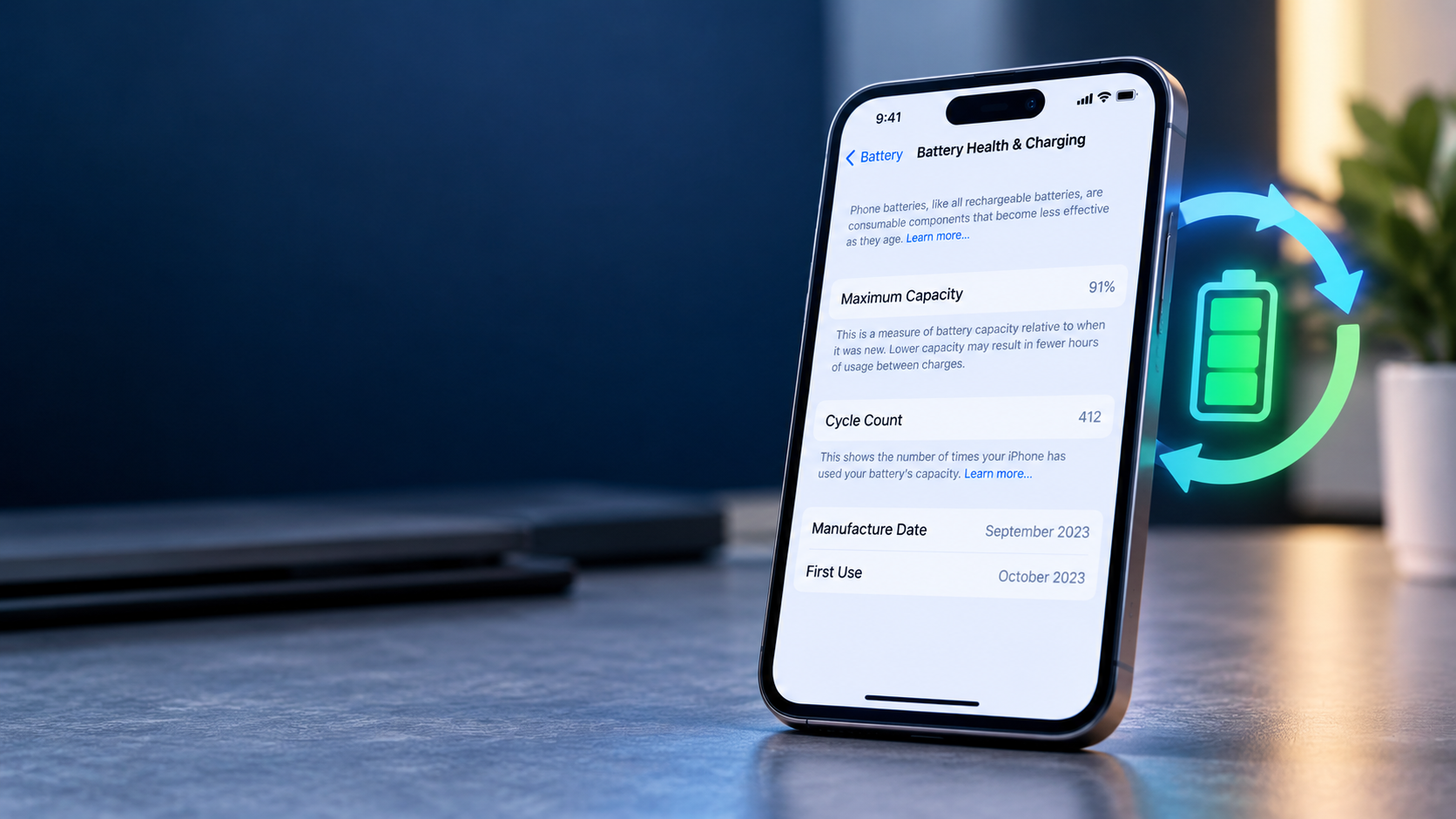
Want to know how to check your iPhone battery cycle count?
The battery cycle count tells you how much cumulative use your iPhone battery has gone through. It can be useful when you’re checking the condition of your current iPhone, troubleshooting battery problems, or deciding whether a used iPhone is worth buying.
On supported newer iPhone models, Apple provides the Cycle Count directly in the Settings app. If your iPhone doesn’t show the information there, you may be able to find it through the device’s analytics data or by using a computer-based battery diagnostic tool.
This guide explains how to check iPhone battery cycle count step by step, including methods for newer and older iPhones, how to understand the number you find, and how cycle count relates to battery health.
Quick Answer: How to Check iPhone Battery Cycle Count
If your iPhone displays cycle count in Settings:
Settings → Battery → Battery Health
Look for Cycle Count.
On some iPhone models, battery information can also be found under:
Settings → General → About
The exact information available depends on your iPhone model and iOS version.
If you don’t see Cycle Count, don’t assume there is no way to check it. Continue reading for the analytics-data and computer methods.
What Is an iPhone Battery Cycle Count?
An iPhone battery cycle is based on the cumulative amount of battery capacity you have used, rather than the number of times you plug the iPhone into a charger.
One complete cycle represents battery usage equivalent to 100% of the battery’s capacity.
You don’t have to use 100% of the battery in one session.
For example, imagine you use:
- 40% of the battery on Monday
- 30% on Tuesday
- 30% on Wednesday
The cumulative usage is 100%, which is approximately one battery cycle.
Likewise, if you use 50% of the battery and recharge it, then later use another 50%, the combined usage represents approximately one cycle.
Does charging your iPhone once equal one cycle?
No.
Connecting your iPhone to a charger does not automatically add one battery cycle.
For example, charging from 40% to 80% is not one complete cycle. Cycle count is based on cumulative battery usage over time.
Method 1: Check iPhone Battery Cycle Count in Settings
This is the easiest method because it doesn’t require a computer or third-party application.
On iPhone models that provide the information directly, follow these steps.
Step 1: Open Settings
Open the Settings app on your iPhone.
Step 2: Open Battery
Scroll down and tap:
Battery
Step 3: Open Battery Health
Tap:
Battery Health
Depending on your iPhone model and iOS version, the wording or available options may differ.
Step 4: Find Cycle Count
If your iPhone supports the feature, look for:
Cycle Count
You may also see other battery information, such as:
- Maximum Capacity
- Battery health information
- Charging information
- Peak performance information
- Battery-service recommendations, where applicable
This is the simplest way to check the battery cycle count because the information comes directly from the iPhone.
Which iPhones Show Battery Cycle Count?
Apple has made battery-cycle information available directly in Settings on newer iPhone generations.
For example, the iPhone 15 generation introduced a more detailed battery-information section that includes cycle count.
However, the exact information displayed can depend on the iPhone model and iOS version.
If you have an older iPhone and don’t see Cycle Count under Battery Health, use one of the alternative methods below.
Method 2: Check iPhone Battery Cycle Count Through Analytics Data
If your iPhone doesn’t display the cycle count directly in Settings, you may be able to find the information in its analytics data.
This method is more complicated because the analytics file contains a large amount of technical information.
Step 1: Open Settings
Open:
Settings
Step 2: Open Privacy & Security
Scroll down and tap:
Privacy & Security
Step 3: Open Analytics & Improvements
Look for:
Analytics & Improvements
The exact wording and menu organization can vary by iOS version.
Step 4: Open Analytics Data
Tap:
Analytics Data
You should see a list of diagnostic and analytics files.
If analytics sharing has only recently been enabled, there may not be enough data immediately available.
Step 5: Look for a log-aggregated file
Look for a file with a name similar to:
log-aggregated-YYYY-MM-DD
The date represents when the analytics file was created.
Choose a relatively recent file.
Step 6: Open the file
The file may contain a very large amount of technical text.
Don’t worry about understanding everything in the file.
You are looking for the battery-cycle information.
Step 7: Search for BatteryCycleCount
If your iPhone’s analytics file contains the information, search the file for:
BatteryCycleCount
The number associated with this entry represents the battery cycle count reported in that analytics data.
Important: Analytics Data Can Vary
This method isn’t guaranteed to work on every iPhone or every iOS version.
Apple can change the format and contents of analytics files. Some devices or versions may not provide the cycle-count information in an easily accessible analytics file.
If you can’t find BatteryCycleCount, use the Settings method if available or consider a computer-based diagnostic method.
Method 3: Check iPhone Battery Cycle Count Using a Computer
Another option is to connect your iPhone to a computer and use a reputable battery diagnostic application.
Some third-party utilities can display information such as:
- Battery cycle count
- Battery capacity
- Current battery capacity
- Battery health
- Device information
- Charging information
The exact information depends on the software, iPhone model, and iOS version.
On a Mac
Some Mac utilities can read battery information from a connected iPhone.
One example commonly used for Apple-device battery information is CoconutBattery.
On Windows
There are Windows utilities that can display diagnostic information from connected iPhones.
Before installing third-party software, make sure you use a reputable application and understand what permissions or device access it requires.
How the computer method works
Generally, the process is:
- Install a reputable battery diagnostic application.
- Connect your iPhone to the computer using a suitable cable.
- Unlock the iPhone.
- Allow the computer to access the device if prompted.
- Open the battery-information section of the application.
- Look for the cycle count and other battery information.
A computer isn’t necessary if your iPhone already displays the cycle count in Settings.
How to Check iPhone Battery Health Alongside Cycle Count
Knowing the cycle count is useful, but it is only one part of understanding battery condition.
You should also check Maximum Capacity.
Go to:
Settings → Battery → Battery Health
You may see a percentage such as:
Maximum Capacity: 92%
Maximum Capacity indicates the battery’s current capacity relative to when it was new.
For example, a battery showing 92% Maximum Capacity has less available capacity than it had when it was new.
Why check both?
Consider these two pieces of information together:
Cycle Count: How much cumulative battery use has occurred.
Maximum Capacity: How much capacity the battery currently retains compared with when it was new.
Neither number should automatically be treated as a complete diagnosis by itself.
What Is a Good iPhone Battery Cycle Count?
There is no single cycle-count number that can determine whether every iPhone battery is good or bad.
Battery condition depends on several factors, including:
- iPhone model
- Battery age
- Usage patterns
- Temperature exposure
- Charging conditions
- Maximum capacity
- Battery chemistry
- Overall device condition
Therefore, don’t judge an iPhone solely because its cycle count is above or below a particular number.
A cycle count is most useful when considered together with Maximum Capacity and actual battery performance.
Does 500 Battery Cycles Mean the Battery Is Bad?
Not necessarily.
You may see online advice suggesting that a battery becomes “bad” after a certain number of cycles. That’s an oversimplification.
Apple has published battery longevity specifications for its different iPhone generations, but the practical condition of an individual battery can vary.
A battery with a particular cycle count may still perform differently from another battery with the same number of cycles.
Instead of asking only:
“How many cycles does my iPhone have?”
also ask:
- What is the Maximum Capacity?
- How quickly does the battery drain?
- Does the iPhone shut down unexpectedly?
- Does the phone become unusually hot?
- Does iOS recommend service?
- How old is the battery?
- Does the phone still meet my daily usage needs?
This gives you a much better picture of battery condition.
Does Charging From 50% to 100% Add One Cycle?
No.
Charging from 50% to 100% doesn’t mean you’ve completed one battery cycle.
A cycle is based on cumulative battery usage.
For example, if you use 50% of the battery, recharge it, and later use another 50%, those two periods of battery usage add up to approximately one complete cycle.
Does Charging an iPhone Overnight Add a Battery Cycle?
No.
Simply leaving your iPhone connected to a charger overnight doesn’t automatically add one battery cycle.
The cycle count is associated with cumulative battery usage, not the number of times you connect the charger.
Modern iPhones also include charging-management features designed to help manage battery charging.
Does Using an iPhone While Charging Increase Cycle Count?
Using your iPhone while it is connected to a charger doesn’t automatically add a battery cycle.
However, demanding activities while charging can increase the device’s temperature.
Because excessive heat can contribute to battery aging, keeping the iPhone at a reasonable temperature is an important part of maintaining battery longevity.
Does Fast Charging Increase Battery Cycle Count?
Fast charging does not mean that every fast-charge session counts as a complete battery cycle.
Cycle count is based on cumulative battery usage.
However, battery longevity can be affected by factors such as temperature and charging conditions, so avoiding excessive heat remains important.
How to Tell If Your iPhone Battery Needs Replacement
Cycle count alone isn’t enough to determine whether you need a replacement battery.
Look for a combination of symptoms and battery-health information.
1. Significantly reduced battery life
If your iPhone now runs for substantially less time than it previously did under similar usage, battery degradation may be a factor.
2. Unexpected shutdowns
Unexpected shutdowns can be associated with an aging battery, although software and other hardware issues can also cause shutdowns.
3. Battery-service recommendation
If iOS indicates that battery service is recommended, pay attention to that message.
4. Significantly reduced Maximum Capacity
A substantially reduced Maximum Capacity means the battery can store less energy than when it was new.
5. Excessive battery drain
If the battery drains unusually quickly, investigate battery usage and battery health rather than relying on cycle count alone.
How to Check Battery Cycle Count Before Buying a Used iPhone
If you’re buying a second-hand iPhone, checking the battery cycle count can provide useful information.
If the phone supports it, go to:
Settings → Battery → Battery Health
Check:
- Cycle Count
- Maximum Capacity
- Battery-health messages
- Peak performance information
- Charging information, where available
You should also inspect the rest of the phone.
Check:
- Screen condition
- Cameras
- Speakers
- Microphone
- Charging port
- Face ID or Touch ID
- Buttons
- Wi-Fi and cellular connectivity
- Storage capacity
- Activation Lock status
- Physical damage
Don’t buy based on cycle count alone
A low cycle count doesn’t automatically guarantee that a used iPhone is in excellent condition.
Likewise, a higher cycle count doesn’t automatically mean that the phone is unusable.
Battery health and the phone’s overall condition matter too.
How to Reduce iPhone Battery Wear
You can’t stop a rechargeable battery from aging, but you can take steps to reduce unnecessary battery stress.
Avoid excessive heat
Don’t leave your iPhone in extremely hot environments such as:
- A hot vehicle
- Direct sunlight
- Very hot rooms
- Enclosed areas where heat cannot escape
Use Apple’s charging-management features
Depending on your iPhone model and iOS version, Apple provides charging features designed to help manage battery aging.
Check:
Settings → Battery → Charging
The options available depend on the iPhone model.
Keep your iPhone updated
iOS updates can introduce improvements to battery management and charging features.
Don’t deliberately drain the battery to 0%
You don’t need to completely discharge your iPhone before charging it.
Regular charging and partial charging are normal ways to use a modern lithium-ion battery.
Why Can’t I See Cycle Count on My iPhone?
If you’re looking for Cycle Count and can’t find it, there are several possible explanations.
Your iPhone model may not display it directly
Some iPhone generations don’t provide cycle count directly in Battery Health.
Your iOS version may differ
Apple can change where battery information appears between iOS versions.
Your analytics data may not contain it
The analytics-data method isn’t guaranteed to expose cycle count on every device or iOS version.
You’re looking in the wrong section
On supported devices, start with:
Settings → Battery → Battery Health
You can also check:
Settings → General → About
for additional device information.
iPhone Battery Cycle Count FAQs
Where can I check my iPhone battery cycle count?
On supported iPhones, go to:
Settings → Battery → Battery Health
Look for Cycle Count.
Can I check iPhone cycle count without a computer?
Yes. If your iPhone displays Cycle Count in Settings, no computer is required.
On some older iPhones, you may also be able to find the information through Analytics Data.
Does every iPhone have a visible cycle count?
No. The information available directly in Settings depends on the iPhone model and iOS version.
What does battery cycle count mean?
It represents cumulative battery usage equivalent to 100% of the battery’s capacity.
Does plugging my iPhone in several times increase the cycle count?
Not necessarily. Connecting the charger multiple times doesn’t mean you’ve completed multiple cycles.
Cycle count is based on cumulative battery usage.
Does charging from 20% to 80% count as one cycle?
No. That represents approximately 60% of the battery’s capacity being used/charged, not a complete cycle.
Is a high cycle count always bad?
No. Cycle count should be evaluated alongside Maximum Capacity, battery age, usage conditions, and actual performance.
Is 500 cycles too many for an iPhone?
Not necessarily. There is no universal rule that makes a battery automatically bad at exactly 500 cycles. The battery’s condition depends on several factors.
Why is my iPhone battery draining quickly even though the cycle count is low?
Cycle count is only one measurement. Battery drain can also be affected by battery age, software, apps, network conditions, screen usage, temperature, and other factors.
Can an iPhone have a low cycle count but poor battery health?
Yes. Cycle count alone does not determine battery condition.
Can I check the cycle count of a used iPhone?
Yes, if the iPhone provides the information through Settings or another supported diagnostic method.
iPhone Battery Cycle Count: Quick Summary
If you want the fastest way to check your battery cycle count:
1. Open Settings
2. Tap Battery
3. Tap Battery Health
4. Look for Cycle Count
If Cycle Count isn’t displayed, check whether your iPhone’s analytics data contains BatteryCycleCount.
If that information isn’t available, you can use a reputable computer-based diagnostic tool to inspect battery information.
Remember that cycle count isn’t a complete battery-health diagnosis. For a better assessment, consider the cycle count together with Maximum Capacity, battery age, performance, battery drain, temperature, and any service warnings shown by iOS.
Final Thoughts
Knowing your iPhone’s battery cycle count can help you understand how much cumulative use the battery has experienced, particularly when troubleshooting battery problems or evaluating a used iPhone.
For supported newer iPhones, the easiest method is to check:
Settings → Battery → Battery Health
If the Cycle Count option isn’t available, the Analytics Data method may provide additional information, while a reputable computer-based diagnostic tool can provide another way to inspect the battery.
Most importantly, don’t judge your iPhone battery by cycle count alone. Maximum Capacity and real-world battery performance are equally important when determining the condition of a battery.

Post Comment