What to Check When Buying a Used iPhone: Complete Inspection Checklist
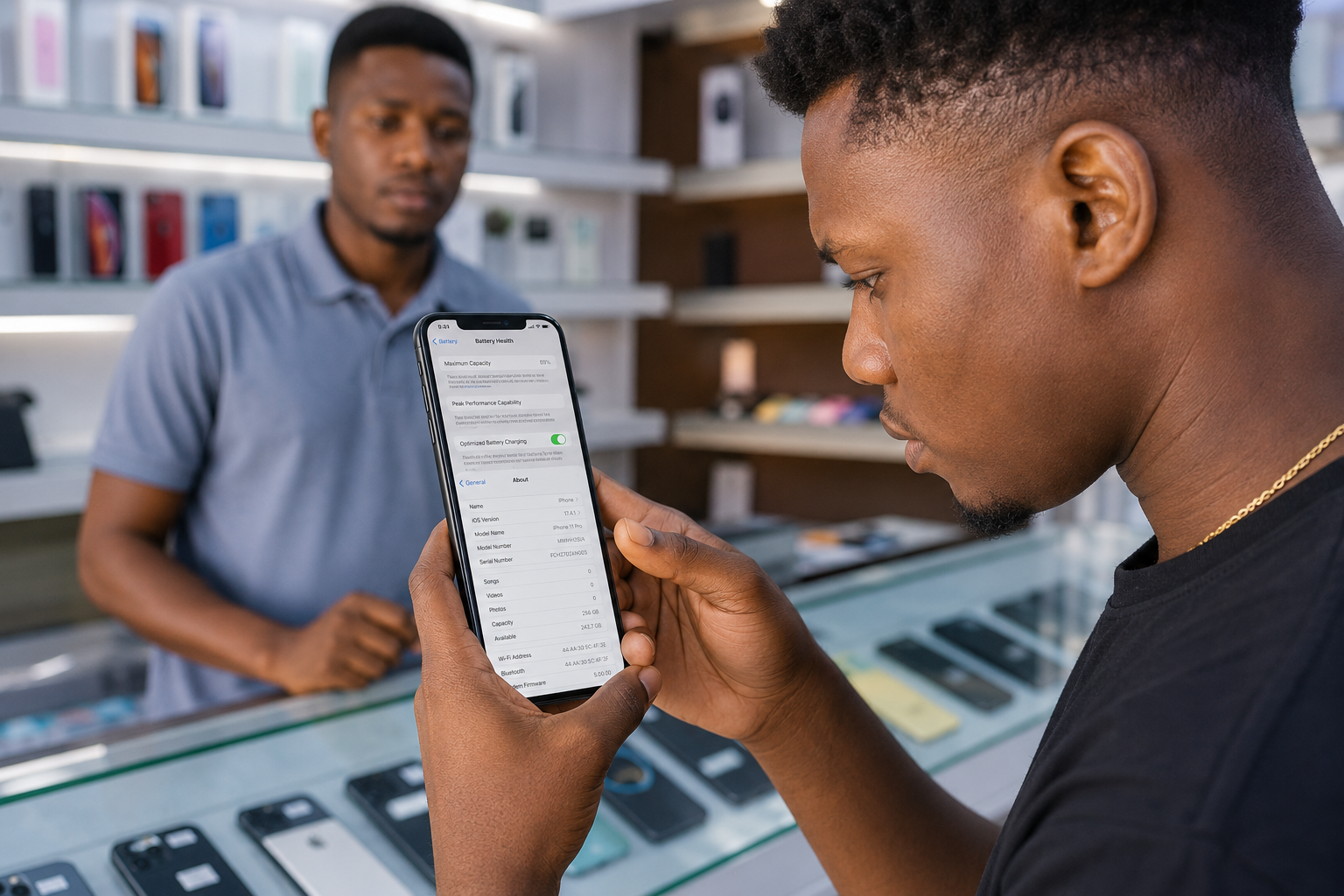
Buying a used iPhone can save you hundreds of dollars compared with purchasing a new device. However, it can also become an expensive mistake if you do not know what to check before handing over your money.
A used iPhone may look almost brand new while having hidden problems such as poor battery health, a damaged display, non-genuine replacement parts, network restrictions, water damage, or an Activation Lock.
Whether you are buying from Facebook Marketplace, a local seller, a phone shop, or a classified website, you should inspect the iPhone carefully before paying.
This guide explains exactly what to check when buying a used iPhone, including the physical condition, IMEI, battery health, Apple Account status, Parts and Service History, Face ID, cameras, speakers, charging, network connectivity, carrier lock, repair history, and potential scams.
By the end, you will have a practical checklist you can use while standing in front of the seller.
Why You Should Check a Used iPhone Before Buying
Many buyers focus mainly on how the iPhone looks.
That is a mistake.
A clean-looking iPhone can still have serious problems that are not immediately visible.
Common problems found in used iPhones include:
- Activation Lock
- Blacklisted IMEI numbers
- Weak or aging batteries
- Replaced displays
- Non-genuine parts
- Faulty Face ID or Touch ID
- Carrier restrictions
- Water damage
- Damaged charging ports
- Camera problems
- Faulty microphones or speakers
- Network connectivity problems
- Fake or counterfeit iPhones
A thorough inspection can help you identify these problems before you pay.
Step 1: Inspect the Physical Condition
Start with the outside of the iPhone.
Physical damage can provide clues about how the device has been treated.
Check the Display
Inspect the screen under good lighting.
Look for:
- Cracks
- Deep scratches
- Dead pixels
- Bright spots
- Discoloration
- Screen lifting
- Uneven brightness
- Burn-in or image retention where applicable
Increase the brightness and open a white background to make display problems easier to see.
Test the Touchscreen
Don’t only look at the screen. Test the entire touchscreen.
Open Notes or another drawing application and draw lines across the entire display.
Test:
- Top edge
- Bottom edge
- Left side
- Right side
- Corners
- Center of the screen
Make sure there are no areas where touch input fails or behaves incorrectly.
Inspect the Frame
Check all sides of the phone.
Look for:
- Dents
- Bends
- Deep scratches
- Impact marks
- Gaps between components
- Signs of previous repairs
A bent frame can indicate that the phone has suffered a significant drop.
Examine the Back Glass
Check the rear glass carefully.
Look for:
- Cracks
- Chips
- Repairs
- Uneven surfaces
- Gaps around the frame
A cracked back may also indicate that the phone has experienced a significant impact.
Inspect the Camera Lenses
The camera lenses should be:
- Clear
- Free from cracks
- Free from major scratches
- Free from visible dust or moisture
Damage around the camera can affect image quality.
Inspect the Buttons
Test every physical button.
Depending on the iPhone model, check:
- Power/Side button
- Volume up
- Volume down
- Silent switch or Action button
Buttons should respond immediately and should not feel unusually loose or difficult to press.
Test Vibration and Haptics
Turn vibration/haptics on and test them.
Make sure the phone vibrates normally and doesn’t produce unusual noises.
Step 2: Verify the IMEI and Serial Number
Checking the IMEI is one of the most important steps when buying a used iPhone.
The IMEI identifies the device on cellular networks.
How to Find the IMEI
Go to:
Settings → General → About
Look for:
- IMEI
- Serial Number
- Model Name
- Model Number
You can also dial:
*#06#
Compare the displayed information with the device information and, where available, the SIM tray or original packaging.
Why IMEI Verification Matters
An IMEI may help determine whether a device has been:
- Reported lost
- Reported stolen
- Blacklisted
- Blocked by a carrier
How to Check the IMEI Before Paying
Obtain the phone’s IMEI and use a reputable carrier or device-status/blacklist checking service available in your country.
Do not rely solely on the seller’s statement that the phone is clean.
If the seller refuses to let you see the IMEI before purchasing, treat that as a warning sign.
Important
A matching IMEI does not automatically prove that the phone is legitimate or that it is not stolen. You should also verify ownership, Apple Account status, Activation Lock, and the phone’s network functionality.
Step 3: Confirm the iPhone Is Genuine
Counterfeit iPhones can sometimes look surprisingly similar to genuine devices.
You should verify that you are actually buying an Apple iPhone.
Check iOS
Open:
Settings → General → About
Check for:
- Model Name
- Model Number
- iOS Version
- Serial Number
- IMEI
Open the App Store
A genuine iPhone should have Apple’s App Store.
Be suspicious if you find:
- Google Play Store
- Unfamiliar app stores
- Android-style menus
- Unusual software interfaces
Some counterfeit phones use Android software designed to look like iOS.
Check Software Updates
Go to:
Settings → General → Software Update
A genuine iPhone should provide Apple’s normal software-update interface.
Check Build Quality
Examine:
- Buttons
- Camera placement
- Port
- Speaker openings
- Frame
- Apple logo
- Overall construction
Compare the model with Apple’s specifications if you are uncertain.
Step 4: Check Activation Lock and Apple Account Status
This is one of the most important checks when buying a used iPhone.
An iPhone protected by Activation Lock can remain linked to the previous owner’s Apple Account.
Check Find My
If the seller is still signed in, ask them to open:
Settings → [Apple Account name] → Find My
The seller should disable Find My iPhone as part of removing the device from their account.
Ask the Seller to Sign Out
Before you pay, the seller should:
- Sign out of their Apple Account.
- Disable Find My.
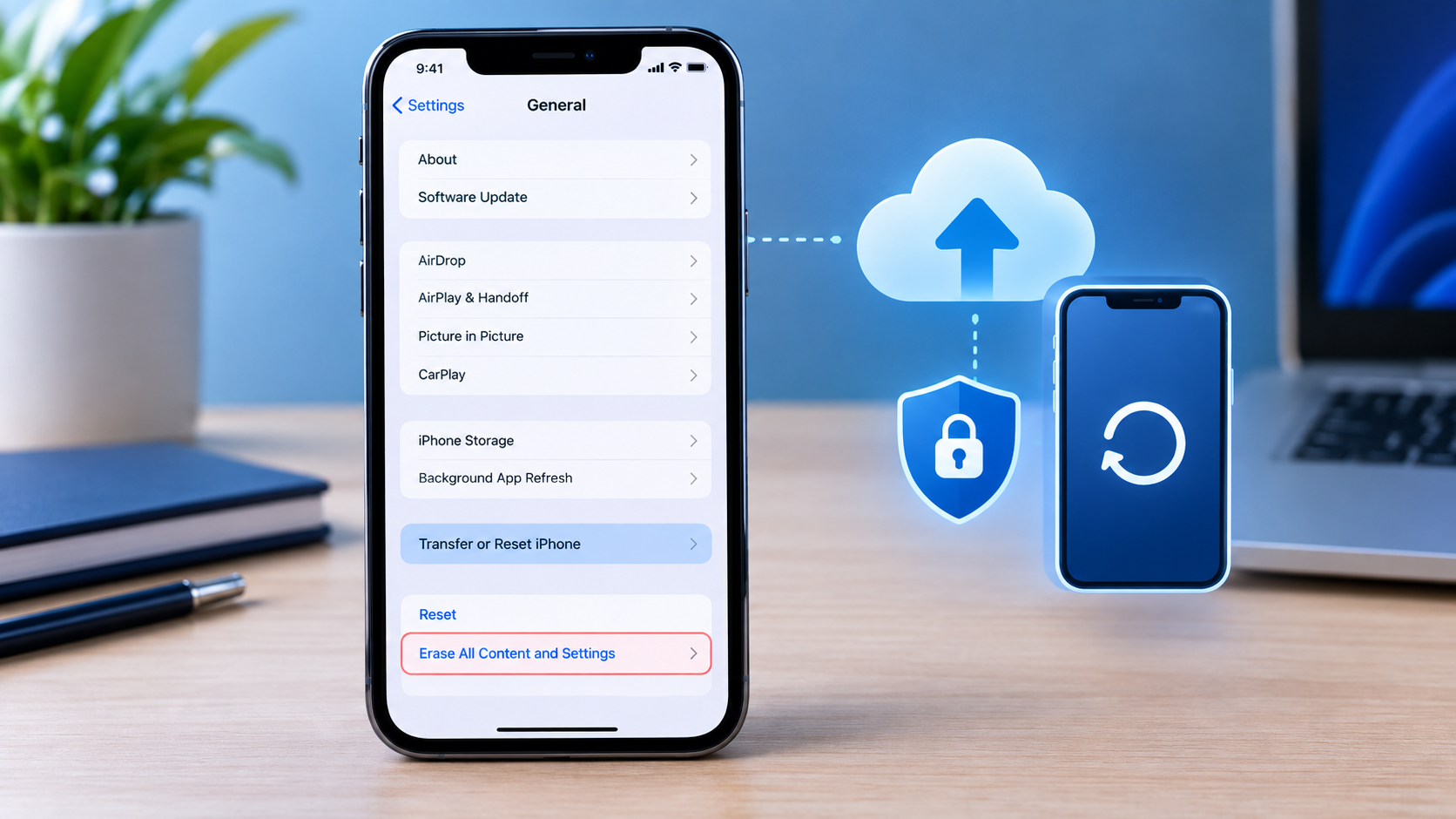
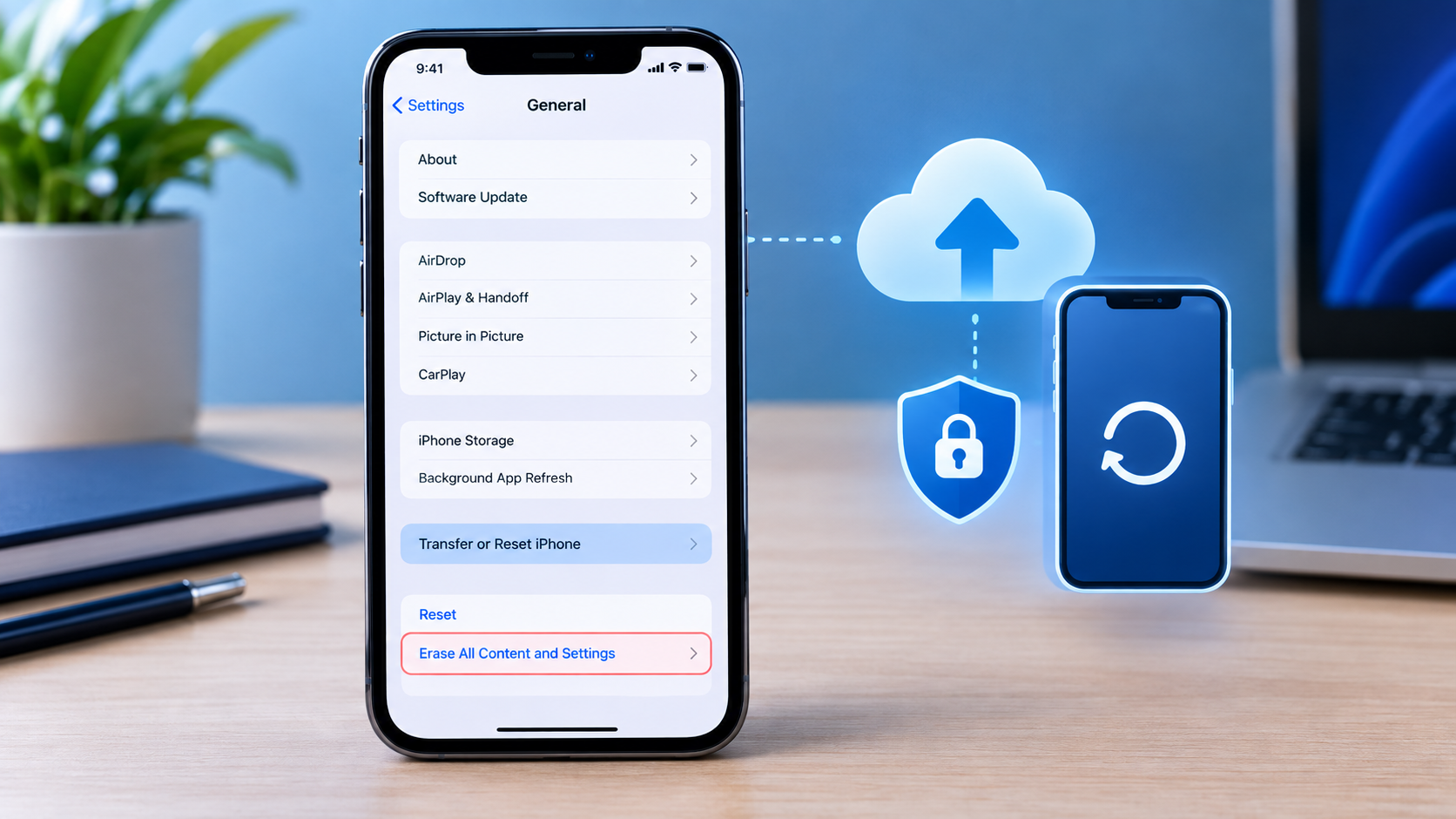
- Erase the iPhone.
- Remove the device from their account where necessary.
Perform a Factory Reset
The safest approach is to have the seller erase the phone before you complete the purchase.
After the reset, the iPhone should take you through the normal setup process.
If the device asks for the previous owner’s Apple Account credentials during activation, do not buy it.
Never Accept This Excuse
Do not accept:
“I’ll remove the account later.”
The account should be removed before you pay.
Step 5: Check Battery Health
Battery condition has a major effect on the value of a used iPhone.
A phone with poor battery health may require a replacement soon.
How to Check Battery Health
Go to:
Settings → Battery → Battery Health & Charging
Look for:
Maximum Capacity
Also review any battery-related warnings.
Battery Health Guide
| Maximum Capacity | General Consideration |
|---|---|
| 95%–100% | Very strong condition |
| 90%–94% | Good condition |
| 85%–89% | Still usable, but some wear |
| 80%–84% | Consider the replacement cost |
| Below 80% | Battery replacement may be approaching |
Battery percentage should not be the only factor. Actual battery performance, warnings, age, and the price of the phone also matter.
Check for Battery Warnings
Look for messages such as:
- Service Recommended
- Important Battery Message
- Unable to Verify Genuine Apple Battery
These may indicate a battery replacement or battery-related issue.
Step 6: Check Parts and Service History
A used iPhone may have had one or more components replaced.
That isn’t necessarily a problem, but you should know which parts were replaced and whether the replacements can be verified.
Go to:
Settings → General → About
On supported iPhone models, look for:
Parts and Service History
Depending on the model and software version, this may provide information about components such as:
- Battery
- Display
- Camera
Why Parts History Matters
Replacement parts can affect:
- Performance
- Reliability
- Features
- Repairability
- Resale value
If the phone shows an unknown or unverified component, ask the seller what happened and whether they have a repair receipt.
A replacement part is not automatically a reason to reject a phone, but you should factor it into your decision and price.
Step 7: Test Face ID or Touch ID
Biometric authentication is another important test.
Test Face ID
Go to:
Settings → Face ID & Passcode
Follow the setup process to determine whether Face ID works properly.
Then lock the phone and unlock it using Face ID.
Watch for messages such as:
- Face ID Not Available
- Unable to Activate Face ID
- Face ID is not working
Test Touch ID
On models with Touch ID:
- Open Settings.
- Go to Touch ID & Passcode.
- Register a fingerprint.
- Lock the phone.
- Unlock it using Touch ID.
If biometric authentication does not work, ask the seller about the reason before considering the purchase.
Step 8: Test All Cameras
Do not assume the cameras work simply because the Camera app opens.
Test every camera available on the model.
Test the Rear Cameras
Open the Camera app and test:
- Main camera
- Ultra-wide camera
- Telephoto camera, if available
Look for:
- Blurry images
- Focus problems
- Black spots
- Flickering
- Unusual colors
- Camera shaking
Switch between available camera lenses to make sure each one works.
Test the Front Camera
Switch to the selfie camera.
Check:
- Image clarity
- Focus
- Portrait mode where supported
- Video recording
Test Video
Record a short video.
Check:
- Video quality
- Audio
- Stabilization
- Camera switching
Test the Flash
Take several photos using the flash.
The flash should operate normally without unusual delays or failures.
Step 9: Test Speakers and Microphones
Audio components can also develop problems after drops, water exposure, or repairs.
Test the Speakers
Play music or a video at different volume levels.
Listen for:
- Crackling
- Distortion
- Low volume
- Missing audio
- Volume fluctuations
Test the Microphone
Open Voice Memos.
Record yourself speaking and play the recording back.
Make sure the recording is clear.
Make a Test Call
If possible, make a phone call.
Test:
- Earpiece
- Main microphone
- Loudspeaker
- Call audio
Step 10: Inspect and Test the Charging Port
The charging port can collect dirt or suffer physical damage.
Inspect it carefully.
Look for:
- Dirt
- Corrosion
- Bent or damaged components
- Loose connections
Test Charging
Connect a compatible charging cable.
Confirm that:
- Charging begins normally
- The connection remains stable
- The cable does not disconnect easily
- The phone does not repeatedly start and stop charging
If possible, test the charging process with a known-good cable and charger.
Test Data Connection
If practical, connect the iPhone to a computer.
Confirm that the device is detected normally.
Step 11: Check for Water Damage
Water damage can cause problems that don’t appear immediately.
Look for signs such as:
- Corrosion
- Moisture around ports
- Fogging inside camera lenses
- Unusual charging behavior
- Random shutdowns
- Speaker problems
- Unexplained heating
Where the model provides a liquid contact indicator that can be inspected, check its condition.
Ask the seller directly whether the phone has ever been exposed to water or liquid.
Do not assume that a phone advertised as water-resistant has never suffered liquid damage.
Step 12: Test Wi-Fi, Bluetooth, GPS and Cellular Connectivity
Connectivity problems can be difficult to identify without testing the phone.
Test Wi-Fi
Connect to a Wi-Fi network.
Check that the connection:
- Connects normally
- Remains stable
- Loads websites or apps
- Does not repeatedly disconnect
Test Bluetooth
Pair the iPhone with a Bluetooth device such as:
- Earbuds
- Speaker
- Car system
- Smartwatch
Confirm that pairing and audio work correctly.
Test Cellular Network
Insert your SIM card.
Test:
- Signal reception
- Phone calls
- SMS
- Mobile data
This is particularly important when buying an imported iPhone.
Step 13: Check Carrier Lock
A carrier-locked iPhone may not work with your preferred network.
Go to:
Settings → General → About
Look for:
Carrier Lock
If the phone shows:
No SIM restrictions
it indicates that the device is unlocked.
If it shows a carrier restriction, ask the seller whether the phone can be officially unlocked.
Do not assume that an iPhone will work with your SIM simply because it turns on.
Step 14: Check eSIM and Physical SIM Compatibility
Depending on the iPhone model and market, SIM configurations can differ.
Check whether the phone supports:
- Physical SIM
- eSIM
- Dual SIM
- Your preferred carrier
If you depend on a physical SIM, make sure the specific model you are buying has the SIM configuration you need.
If you use eSIM, confirm that eSIM activation works with your carrier.
Step 15: Check Warranty and Coverage
Warranty or AppleCare coverage may add value to a used iPhone.
Go to:
Settings → General → AppleCare & Warranty
The exact menu may vary depending on the iPhone and software version.
Check whether coverage is still active and review the available coverage information.
Also ask the seller:
- Has the phone ever been repaired?
- What parts were replaced?
- Has it suffered water damage?
- Is there a repair receipt?
If the seller claims that the phone was recently repaired, ask for documentation where available.
Step 16: Verify the Model and Storage Capacity
Make sure the phone matches the seller’s description.
Check:
Settings → General → About
Verify:
- Model name
- Model number
- Storage capacity
- Serial number
- IMEI
For example, if the seller advertises a 256GB iPhone but the device reports a different capacity, investigate before purchasing.
You can also compare the model number and physical features with Apple’s specifications.
Step 17: Check the Phone’s Overall Performance
Spend several minutes actually using the phone.
Open and close multiple applications.
Check for:
- Excessive lag
- Unexpected freezing
- Random restarts
- Overheating
- Apps crashing
- Screen glitches
- Unusual battery drain
A used iPhone doesn’t have to perform exactly like a brand-new device, but serious instability deserves investigation.
Step 18: Check for Signs of Previous Repairs
Carefully inspect the phone for evidence of repair.
Look for:
- Uneven screen edges
- Gaps around the display
- Scratched screws
- Damaged frame edges
- Different colors or finishes between components
- Camera alignment problems
- Poorly fitted replacement parts
Then check Parts and Service History where supported.
If the seller says the phone has never been repaired but the device shows replacement components or obvious repair evidence, ask questions before paying.
Step 19: Verify Ownership and Purchase Documentation
Ask the seller for proof of ownership where available.
Useful documents may include:
- Original receipt
- Purchase invoice
- Carrier documentation
- Repair receipts
- Original packaging
The box alone is not sufficient proof that the seller owns the phone.
Compare device information with available documentation where possible.
If the seller cannot reasonably explain where the phone came from, be cautious.
Step 20: Watch for Common Used iPhone Scams
Scam #1: Activation Lock
The seller says:
“I’ll remove the account later.”
Solution: Do not pay until the device has been removed from the previous owner’s account and can be activated by you.
Scam #2: Fake iPhone
The device looks like an iPhone but actually runs modified Android software.
Solution: Check iOS, the App Store, software updates, model information, and hardware features.
Scam #3: Blacklisted Phone
The device may have been reported lost or stolen.
Solution: Check the IMEI through a reputable status-checking service or carrier before purchasing.
Scam #4: Poor Replacement Parts
The phone may contain low-quality or unverified replacement components.
Solution: Check Parts and Service History and test all affected features.
Scam #5: Battery Problems
A seller may advertise a phone as being in excellent condition while the battery is heavily worn.
Solution: Check Maximum Capacity and battery warnings.
Scam #6: Pressure to Buy Quickly
A seller may try to prevent you from testing the phone.
Solution: Take your time. If a seller refuses reasonable inspection, walk away.
Scam #7: Deposit or Advance-Payment Scam
A seller may ask you to transfer money before you see the phone.
Solution: Whenever possible, inspect and test the phone before making payment.
Step 21: Meet Safely When Buying From a Private Seller
If you are buying from Facebook Marketplace or another individual seller, take basic precautions.
Meet in a Public Location
Possible locations include:
- Shopping centers
- Busy cafés
- Phone shops
- Public meeting areas
- Designated safe-exchange locations
Avoid isolated locations.
Don’t Rush
Complete your inspection before handing over money.
Avoid Advance Payments
Be cautious about sellers who demand deposits before allowing you to inspect the phone.
Bring the Right Equipment
If possible, bring:
- Your SIM card
- A compatible charging cable
- A charger
- Earbuds or Bluetooth device
- Another phone for checking information online
- Your payment method
The 10-Minute Used iPhone Inspection
If you don’t have much time with the seller, follow this order.
Minute 1: Physical Inspection
Check:
- Screen
- Frame
- Back glass
- Camera lenses
- Buttons
- Charging port
Minute 2: IMEI and Model
Go to:
Settings → General → About
Check:
- IMEI
- Serial number
- Model
- Storage capacity
Minute 3: Account and Activation Lock
Have the seller sign out of their Apple Account and disable Find My.
Then erase the phone and begin the setup process.
Minute 4: Battery and Parts
Check:
Settings → Battery → Battery Health & Charging
Then check:
Settings → General → About → Parts and Service History
where available.
Minute 5: Screen and Touch
Test:
- Brightness
- Dead pixels
- Touch response
- Edges
- Corners
Minute 6: Face ID or Touch ID
Register your face or fingerprint and test unlocking.
Minute 7: Cameras and Audio
Test:
- Front camera
- Rear cameras
- Flash
- Video
- Speakers
- Microphone
Minute 8: Charging
Connect your cable and make sure charging works normally.
Minute 9: Network
Insert your SIM and test:
- Calls
- SMS
- Mobile data
Then test Wi-Fi and Bluetooth if possible.
Minute 10: Final Verification
Before paying, confirm:
- No Activation Lock
- IMEI is acceptable
- Phone is genuine
- Battery condition is acceptable
- Major features work
- Carrier compatibility is confirmed
- Seller’s ownership story makes sense
Only then complete the purchase.
Final Used iPhone Checklist
Before paying, check every item below:
Physical Condition
☐ Screen has no major cracks
☐ Touchscreen works across the entire display
☐ No serious display defects
☐ Frame is not bent
☐ Back glass is acceptable
☐ Camera lenses are undamaged
☐ Buttons work
☐ Vibration/haptics work
Identity and Security
☐ IMEI matches device information
☐ Serial number is consistent
☐ IMEI status has been checked
☐ iPhone is genuine
☐ Previous Apple Account has been removed
☐ Find My has been disabled
☐ Activation Lock is removed
☐ Phone can be activated normally
Battery and Parts
☐ Battery health has been checked
☐ No concerning battery warnings
☐ Parts and Service History has been reviewed
☐ Replacement parts have been disclosed
Hardware
☐ Face ID or Touch ID works
☐ Front camera works
☐ Rear cameras work
☐ Flash works
☐ Video recording works
☐ Speakers work
☐ Microphone works
☐ Charging port works
☐ Phone charges normally
☐ No obvious water damage
Connectivity
☐ SIM works
☐ Calls work
☐ SMS works
☐ Mobile data works
☐ Wi-Fi works
☐ Bluetooth works
☐ Carrier Lock has been checked
☐ eSIM/SIM configuration suits your needs
Ownership and Purchase
☐ Repair history has been discussed
☐ Warranty/coverage has been checked
☐ Proof of ownership is available where possible
☐ Seller allows proper testing
☐ No suspicious pressure to buy
☐ No unexplained advance-payment request
Frequently Asked Questions
What should I check first when buying a used iPhone?
Start with the phone’s physical condition, IMEI, Apple Account/Activation Lock status, battery health, and Parts and Service History. Then test the major hardware and network functions before paying.
What battery health is good for a used iPhone?
Battery health is only one factor, but many buyers prefer a device with relatively high Maximum Capacity. A battery below 80% may require replacement sooner, so factor the potential replacement cost into the price.
How do I check if a used iPhone is stolen?
Start by obtaining the IMEI and checking its status through a reputable carrier or device-status service available in your country. Also verify ownership documentation and make sure Activation Lock has been removed.
How do I know if a used iPhone is genuine?
Check the iOS interface, App Store, software updates, model information, serial number, IMEI, hardware features, and overall build quality. A fake iPhone may use Android software disguised to look like iOS.
How do I know if an iPhone has been repaired?
Check Settings → General → About for Parts and Service History on supported models. Also inspect the device physically for signs of previous repairs and ask the seller for repair documentation.
Is it safe to buy a used iPhone from Facebook Marketplace?
It can be, but you should inspect the phone in person, verify its identity and ownership status, test its major functions, avoid advance payments, and complete the transaction only after you are satisfied with the inspection.
What does “No SIM restrictions” mean?
In the iPhone’s Carrier Lock section, No SIM restrictions indicates that the device is not carrier-locked.
Should I factory reset a used iPhone before buying it?
Ideally, ask the seller to erase the iPhone before you complete payment and go through the initial setup yourself. This helps confirm that the previous owner’s account and Activation Lock have been removed.
What if the seller refuses to let me test the phone?
Consider that a significant warning sign. A legitimate seller should generally allow reasonable inspection of a used phone before payment.
Conclusion
Knowing what to check when buying a used iPhone can save you from expensive repairs, network problems, account locks, counterfeit devices, and other unpleasant surprises.
Don’t judge a used iPhone by appearance alone.
Check the IMEI, Apple Account status, Activation Lock, battery health, Parts and Service History, screen, cameras, Face ID or Touch ID, speakers, microphone, charging port, connectivity, carrier lock, water damage, repair history, and ownership documentation.
Most importantly, test the phone before you pay.
Take your time, don’t let the seller pressure you, and walk away if important checks cannot be completed. A few extra minutes of inspection can save you from a costly mistake.

Post Comment